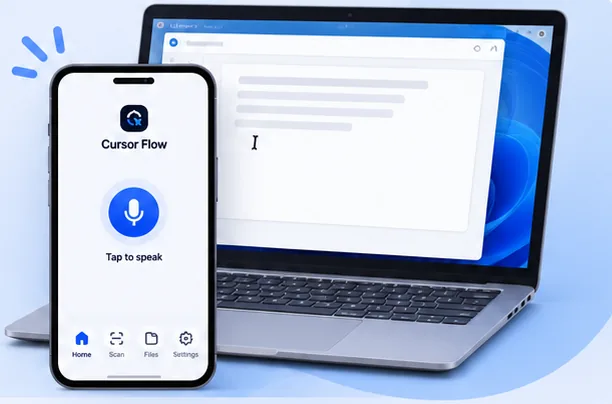
 Cursor Flow
How to Voice Type Gmail Emails from Android Phone to Windows
Write a Gmail email on Windows by speaking into an Android phone. Learn how to pair Cursor Fllow, focus the compose box, review the draft, and avoid common mistakes.
On this page
- Why use a phone to dictate Gmail on Windows?
- What you need
- Set up Gmail voice typing from Android
- Write and review a Gmail email by voice
- Subject line and recipient checks
- Cursor Fllow versus Windows Voice Typing
- Common Gmail voice typing problems
- Privacy and safety
- A reliable daily routine
- How to do this with Cursor Flow
- FAQ
- Keep reading
This workflow creates an editable Gmail draft. It does not send the email automatically, and it is different from using Gmail on the Android phone itself.
Why use a phone to dictate Gmail on Windows?
A Windows computer may have a distant microphone, a noisy room, or no convenient microphone. An Android phone is easy to place near you. Cursor Fllow lets you speak into that phone while keeping the email, attachments, recipient list, and final Send button on the Windows screen.
The key idea is simple: Gmail provides the email field, Windows shows the draft, and Cursor Fllow carries the spoken text from the phone to the active field.
What you need
- A Windows PC with Gmail open in a supported browser.
- An Android phone with Cursor Fllow installed.
- Cursor Fllow installed on Windows.
- The phone and PC paired in the same Cursor Fllow account.
- A Gmail account that can compose or reply to email.
Gmail login is separate from Cursor Fllow pairing. Sign in to Gmail first, then use Cursor Fllow for the phone-to-PC text path.
Set up Gmail voice typing from Android
- Install Cursor Fllow: Get the Windows and Android apps from the official download page.
- Pair the devices: Follow the pairing guide and wait for the connected status.
- Open Gmail on Windows: Use your normal browser session and sign in.
- Start a draft or reply: Click Compose, or open an email and choose Reply or Forward.
- Click inside the message body: Confirm that the caret is blinking in the large text area.
- Say a short test sentence: Check that the text appears in the Gmail draft before dictating the whole email.
The blinking caret matters. Clicking the Gmail window is not always enough. The actual message body must be focused before text can be inserted.
Write and review a Gmail email by voice
For professional email, dictate in short sections. This makes it easier to catch names, numbers, links, and missing punctuation.
- Open the intended Gmail conversation or start a new draft.
- Check the To, Cc, and Bcc fields before writing the body.
- Click the message body and confirm the caret.
- Dictate the opening sentence from your Android phone.
- Read the text on Windows.
- Add the next paragraph in a separate section.
- Review names, dates, attachments, links, and action items.
- Send only after the final review.
For example, dictate the purpose first: “I am sharing the updated proposal for your review.” Pause and check it. Then dictate the deadline and next step. A short review between sections is safer than sending a long unedited draft.
Subject line and recipient checks
Cursor Fllow follows the active field, so the destination can change when you click around Gmail. Before dictating, confirm whether the caret is in the subject line or the message body.
Always check the recipient after writing. Gmail autocomplete can select a similar name, especially when contacts share a surname. Read the visible address, not only the contact label.
| Field | What to check | Common mistake |
|---|---|---|
| To, Cc, Bcc | Visible address and intended audience | Choosing a similar contact from autocomplete |
| Subject | Short, specific summary | Dictating the body while the subject still has focus |
| Message body | Names, dates, links, and next steps | Sending without reading the final text |
| Attachments | Correct file and version | Forgetting to attach a file mentioned in the draft |
Cursor Fllow versus Windows Voice Typing
Windows Voice Typing can also work in Gmail. Microsoft says it requires an internet connection, a working microphone, and a cursor in a text box. On a hardware keyboard, press Windows key + H, wait for the listening state, and speak.
Cursor Fllow is useful when you want the Android phone to be the microphone. It keeps the Windows email workflow on screen while the phone handles your speech input.
| Option | Best fit | What to watch |
|---|---|---|
| Cursor Fllow | Speak into Android and write at the Windows cursor | Pairing and Gmail field focus must be correct |
| Windows Voice Typing | Use the PC microphone at a quiet desk | Internet, microphone access, and Win+H |
| Android Gmail app | Compose entirely on the phone | Less room for desktop attachments and review |
Common Gmail voice typing problems
Privacy and safety
The final email is sent to the visible recipients when you press Send. Do not dictate passwords, one-time codes, private keys, or confidential data into a draft unless your organisation allows that workflow.
For customer, medical, financial, or workplace email, check your internal policy. Voice typing can reduce keyboard work, but it does not replace the normal responsibility to review an email before delivery.
A reliable daily routine
- Open Gmail on Windows.
- Choose Compose, Reply, or Forward.
- Check the recipients.
- Click the exact subject or body field you intend to fill.
- Confirm the phone and PC are connected.
- Dictate one short sentence.
- Read the text on screen.
- Continue in small sections.
- Check the attachment, links, and final recipients.
- Send only after the review.
Cursor Fllow works here as a phone-to-PC writing bridge. You can speak naturally into Android while keeping Gmail's desktop context and final send control on Windows.
For related workflows, read the email reply guide, the WhatsApp guide, and the text not appearing troubleshooting guide. You can also review Cursor Fllow plans.
How to do this with Cursor Flow
- Install both apps. Get Cursor Flow for Windows and Android from the download page.
- Pair once. Open the phone app and scan the QR code shown on your PC. See pairing if you get stuck.
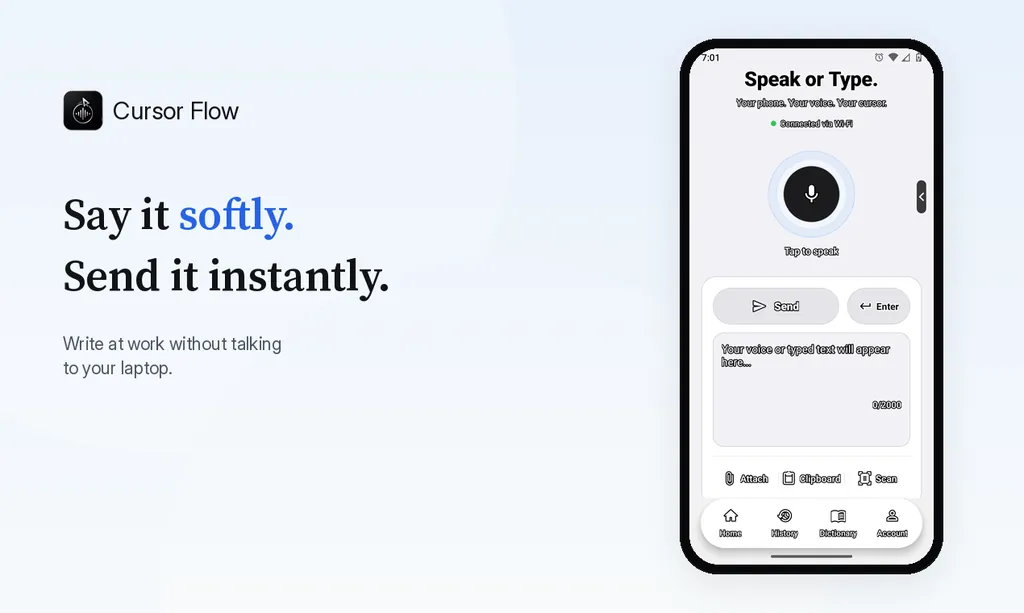
- Click into any text field, then speak or type. Speak softly into the phone held close, or type and tap Send. The words are typed at your PC cursor, in the app you already use.
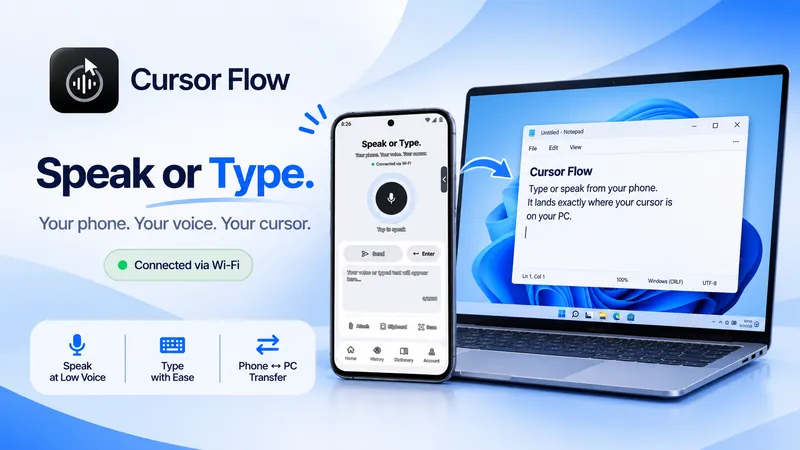
The free plan includes 2,500 dictation words a week, typing on your phone into your PC cursor, phone-to-PC files, images and clipboard, and Scan. See pricing, how phone to PC works, and Gmail, Docs and Notion.
FAQ
Can I voice type a Gmail email from Android to Windows?
Yes. Pair the Android phone and Windows PC in Cursor Fllow, open Gmail, click the compose or reply body, and dictate from the phone. The words appear as editable text in the active Gmail field.
Can Cursor Fllow send the Gmail email automatically?
No. Cursor Fllow sends text to the active Gmail field. You should review the recipients, subject, body, links, and attachments, then press Send yourself.
Why did my words appear in the Gmail subject line?
The subject field still had focus. Click inside the message body until the caret appears there, then dictate a short test sentence before continuing.
Can I use Cursor Fllow for Gmail replies?
Yes. Open the conversation, choose Reply or Forward, click inside the message body, and dictate from the paired Android phone. Review the quoted conversation and new text before sending.
Is Gmail voice typing the same as a Gmail voice message?
No. This workflow creates a written email draft. Gmail voice typing is different from recording an audio message, and the normal Gmail Send action still requires your review.
- 57languages
- 2,500free words a week
- Windows + Androidone paired workflow
 Cursor Flow