 Cursor Flow
How to Voice Type in Notion from an Android Phone to Windows
Use an Android phone to dictate into a Notion page on Windows. Compare Notion desktop voice input with Cursor Fllow, then follow a practical setup and troubleshooting guide.
On this page
This guide is about the phone-to-PC path. It is useful when your laptop microphone is weak, when you want the phone close to your mouth, or when you want to dictate into a Notion page without moving an external microphone beside the computer.
Which Notion voice workflow do you need?
There are two different jobs that people call Notion voice typing. Choosing the right one prevents a frustrating setup.
| Workflow | Where speech is captured | Best for |
|---|---|---|
| Notion AI voice input | Desktop Notion | Dictating a prompt or request to Notion AI |
| Windows Voice Typing | Windows PC microphone | Typing into a focused Notion text field for free |
| Cursor Fllow phone-to-PC dictation | Android phone | Sending dictated text to the Notion field at your Windows cursor |
Notion announced voice input for Notion AI on desktop in April 2026. That does not mean every Notion page block has a phone microphone mode. For ordinary page writing, the important question is where the text should land. If the answer is a specific Notion block on Windows, focus that block first.
Set up Cursor Fllow for a Notion page
- Install the apps: Get the Windows app and the Android app from the official download page.
- Pair the phone and PC: Follow the pairing guide. Check that both apps show the devices as connected before opening important work.
- Open Notion on Windows: Use the desktop app or a browser tab, then open the page where you want to write.
- Click the destination block: Click inside a paragraph, bullet, toggle, callout, or other writable block. The active caret is the destination.
- Start a short test: Say one sentence on the phone and confirm that it appears in the selected Notion block before dictating a long passage.
A short test matters because a Notion page can contain several editable areas. A click in the wrong block is still a valid cursor. Cursor Fllow can send text to the focused field, but it cannot decide which project note you intended to edit.
How to dictate clean notes into Notion
Once the connection works, use a simple rhythm. First, say the heading or opening sentence. Pause and check the result. Then continue with one idea per paragraph. This makes corrections easier than dictating a full page without looking at the screen.
- Click the Notion block again if you switched windows or received a notification.
- Speak in complete sentences and say punctuation when the app or language setup requires it.
- Use a new paragraph between separate ideas instead of making one large block.
- Read names, URLs, numbers, and dates on the PC before moving on.
- Use the phone controls to stop or finish the current dictation before changing the target.
For a meeting note, a useful structure is: one short title, a paragraph of context, a bullet list of decisions, and a final section for follow-up tasks. The structure is not a Notion automation. It is simply a way to keep phone dictation easy to review.
Cursor Fllow compared with Windows Voice Typing
Windows Voice Typing is the fastest free option when your PC has a working microphone and you can speak at the desk. Microsoft says it requires an internet connection, a working microphone, and a cursor in a text box. Press Windows key + H, wait for the listening state, and speak.
Cursor Fllow changes the input device. The text still goes to the Windows cursor, but the phone captures the speech. That can be helpful when the phone is closer to you than the laptop microphone or when the PC microphone is unreliable. It does not turn Notion into a recording or transcription archive. It sends text to the selected field.
| Choose | When it fits | Main limit |
|---|---|---|
| Windows Voice Typing | You are at a quiet desk with a usable PC microphone | Uses the PC microphone and needs internet |
| Cursor Fllow | You want the Android phone close to your voice and text in the PC field | You must pair the devices and keep the right block focused |
| Phone notes app | You only need a private draft on the phone | You still need to move the text to Notion later |
Fix common Notion dictation problems
Privacy and workspace checks
Phone-based dictation can feel more comfortable, but it is not automatically private. The text still appears on the Windows screen, and your organisation may have rules about putting work information into third-party software. Read the security and data page before using client records, passwords, or confidential notes.
Do not dictate credentials into Notion. Password fields are skipped by Cursor Fllow, but a private workspace page is still not a password manager. Review the text before sharing the page with teammates.
A practical Notion routine
- Open a blank Notion page or a safe test block.
- Pair and check the phone-to-PC connection.
- Dictate one sentence and confirm the destination.
- Write in short sections, checking names and numbers as you go.
- Format headings, bullets, and database properties after the words arrive.
- Read the final note once before sharing or assigning tasks.
For a longer document, the PC keyboard is usually better for editing and rearranging blocks. Cursor Fllow is most useful when getting the first draft onto the page is the difficult part.
See the Google Docs voice typing alternatives guide for a broader comparison of phone, Windows, and cross-app workflows. You can also review the Cursor Fllow plans before choosing a setup.
How to do this with Cursor Flow
- Install both apps. Get Cursor Flow for Windows and Android from the download page.
- Pair once. Open the phone app and scan the QR code shown on your PC. See pairing if you get stuck.
- Click into any text field, then speak or type. Speak softly into the phone held close, or type and tap Send. The words are typed at your PC cursor, in the app you already use.
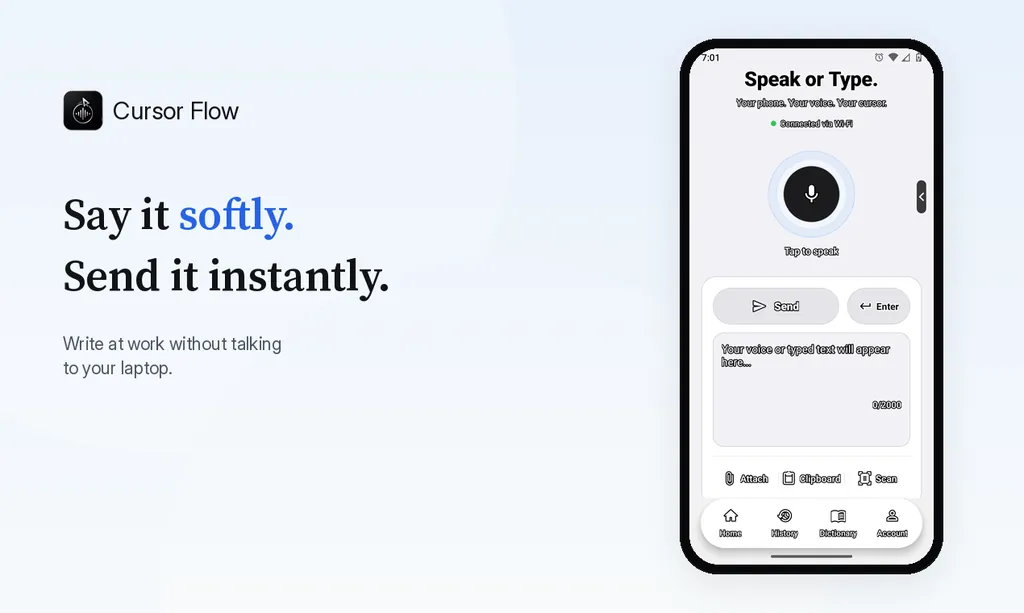
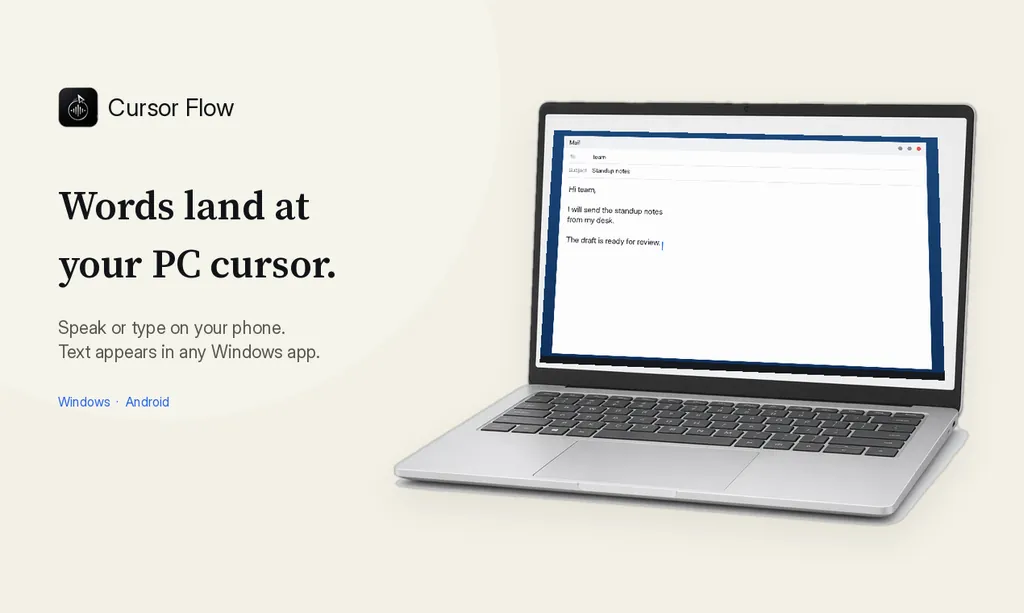
The free plan includes 2,500 dictation words a week, typing on your phone into your PC cursor, phone-to-PC files, images and clipboard, and Scan. See pricing, how phone to PC works, and Gmail, Docs and Notion.
FAQ
Can I dictate into a Notion page from an Android phone?
Yes. Pair the Android phone and Windows PC in Cursor Fllow, click a writable Notion block on the PC, and dictate from the phone. The text is sent to the focused PC cursor.
Does Notion have voice typing on desktop?
Notion announced voice input for Notion AI on desktop. That is separate from using a phone as the microphone for ordinary page text. For a normal page block, focus the block where you want text to appear.
Is Cursor Fllow the same as Windows key plus H?
No. Windows Voice Typing uses the PC microphone. Cursor Fllow uses the paired Android phone and sends the dictated text to the Windows cursor.
Why is my dictation going into the wrong Notion block?
The active caret determines the destination. Stop, click the intended Notion block again, and test with a short phrase before continuing.
Can Cursor Fllow format a Notion database automatically?
The phone-to-PC workflow sends text to the focused field. It does not promise to choose a database property or apply every Notion block type automatically. Format and organise the content after it arrives.
- 57languages
- 2,500free words a week
- Windows + Androidone paired workflow