 Cursor Flow
"No Permission to Enable Voice Typing": How to Fix It
Seeing "No permission to enable: Voice typing" on Android? Give Gboard mic access, turn voice typing on, clear the cache. Step-by-step fixes.
On this page
- Why this error appears
- Fix 1: Give Gboard microphone permission
- Fix 2: Turn on voice typing in Gboard
- Fix 3: Check the language
- Fix 4: Clear Gboard's cache
- Fix 5: Update Gboard and restart
- Fix 6: Check the microphone itself
- Fix 7: Check the privacy toggle (Android 12 and later)
- Still stuck? Try another keyboard
- Why the error keeps coming back
- How to do this with Cursor Flow
- FAQ
- Keep reading
The steps below follow Google's Fix problems with Gboard help page, checked on 10 November 2026. Menu names vary a little between phone brands like Samsung, Xiaomi and Motorola, but the path is similar on all of them.
Why this error appears
When you tap the microphone on your keyboard, the keyboard app needs two things:
- Android permission to use the microphone: If this was denied, often by accident when the pop-up first appeared, you get the error.
- Voice typing turned on in the keyboard's own settings.
The error is about the keyboard, not the app you are typing in. That is why you can see it in WhatsApp, Messages, Gmail or anywhere else.
Fix 1: Give Gboard microphone permission
- Open your phone's Settings app.
- Tap Apps (on some phones, App management).
- Find and tap Gboard. You may need to tap "See all apps" first.
- Tap Permissions.
- Tap Microphone.
- Select Allow only while using the app.
Go back to any text box, tap the microphone on the keyboard and try again.
If you use a different keyboard, such as Samsung Keyboard or SwiftKey, do the same steps for that app instead of Gboard.
Fix 2: Turn on voice typing in Gboard
- Open any app where you can type, like Gmail or Keep.
- Tap a text field so the keyboard appears.
- At the top of the keyboard, tap Settings (the gear icon). If you do not see it, tap the menu icon first.
- Tap Voice typing.
- Turn on Voice typing (on some versions, "Use voice typing").
Google also suggests turning on Faster voice typing for better responsiveness, and on Pixel 6 or newer, Advanced voice typing features.
Fix 3: Check the language
Google notes that for the Advanced voice typing features, your primary Gboard language and your device language must be the same. If you switched languages recently, check both:
- Gboard: Settings > Languages.
- Phone: Settings > System > Languages (path varies by brand).
Fix 4: Clear Gboard's cache
If permissions are fine but the error stays, cached files may be stuck.
- Open Settings > Apps > Gboard.
- Tap Storage (or "Storage and cache").
- Tap Clear cache.
If that does not work, tap Clear data. Google warns this resets Gboard to its default state, so your custom settings and learned words may go.
Fix 5: Update Gboard and restart
Open the Play Store, search for Gboard and tap Update if it appears. Then restart your phone. This clears temporary glitches that permissions alone do not fix.
Fix 6: Check the microphone itself
If voice typing still fails, test the mic in another app. Record a short voice note or a video. If nothing records:
- Remove any case that might cover the mic hole.
- Disconnect Bluetooth headsets that might be taking the audio.
- Check whether another app is using the mic, such as a call or a recorder.
Fix 7: Check the privacy toggle (Android 12 and later)
Since Android 12, many phones have a Mic access tile in Quick Settings that blocks the microphone for every app. Swipe down from the top of the screen and check that this tile is not blocking the mic. If you do not see it, it may be hidden behind the edit (pencil) button.
Still stuck? Try another keyboard
If nothing works, another voice keyboard is a reasonable workaround while you wait for an update. We compared options in our guide to the best voice keyboard for Android.
Cursor Flow's Android app includes a voice keyboard that works in any app on your phone, removes filler words and adds punctuation. It is part of the same app that sends what you say to your Windows PC. If you try it, you will need to turn on the Cursor Flow keyboard in Android settings once and allow the microphone, just like with Gboard. Our Android keyboard setup guide shows each step, and the voice keyboard page explains what it does.
Why the error keeps coming back
Some people fix the error, then see it again a week later. Common reasons:
- A phone update reset permissions: Large Android updates sometimes ask again for permissions. Repeat Fix 1.
- A cleaner or battery app revoked access: Some phones remove permissions from apps you do not open often. Check your phone's battery and "unused apps" settings and exclude your keyboard.
- You switched keyboards: If you installed another keyboard, Android may be using it. Check which keyboard is default and give that one microphone access.
- A work profile blocks it: On managed work phones, your IT team can restrict the microphone. Ask them if the error only happens in work apps.
Once you know the cause, the fix takes under a minute.
Tip: after any fix, test in a simple app like Keep or Messages first. If voice typing works there but not in one specific app, the problem is that app's settings, not the keyboard.
How to do this with Cursor Flow
- Install both apps. Get Cursor Flow for Windows and Android from the download page.
- Pair once. Open the phone app and scan the QR code shown on your PC. See pairing if you get stuck.
- Switch to the Cursor Flow keyboard. In any phone app, choose the Cursor Flow keyboard and tap to speak. With your PC paired, the phone can also type at your PC cursor.
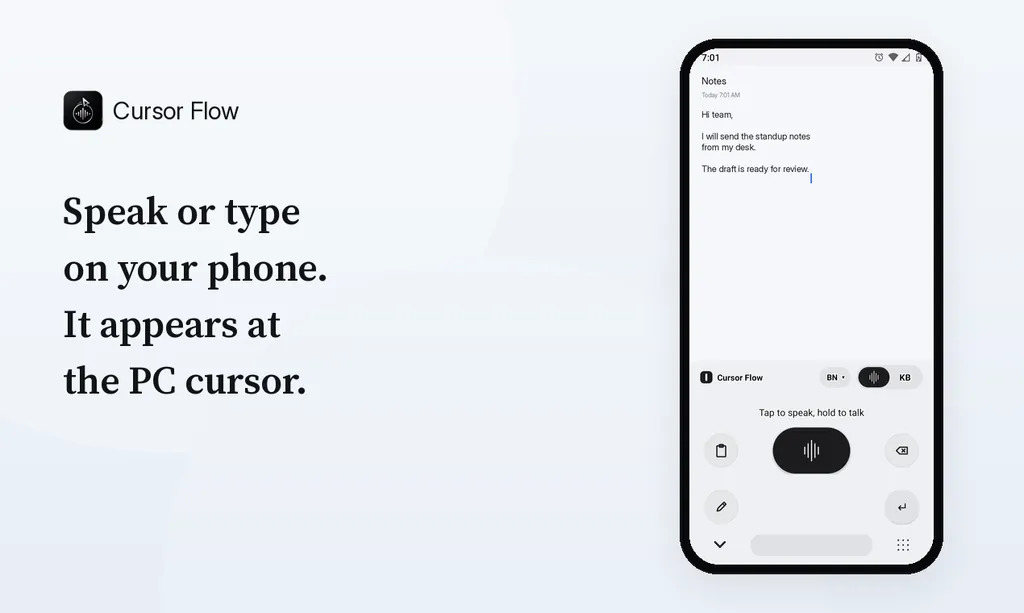
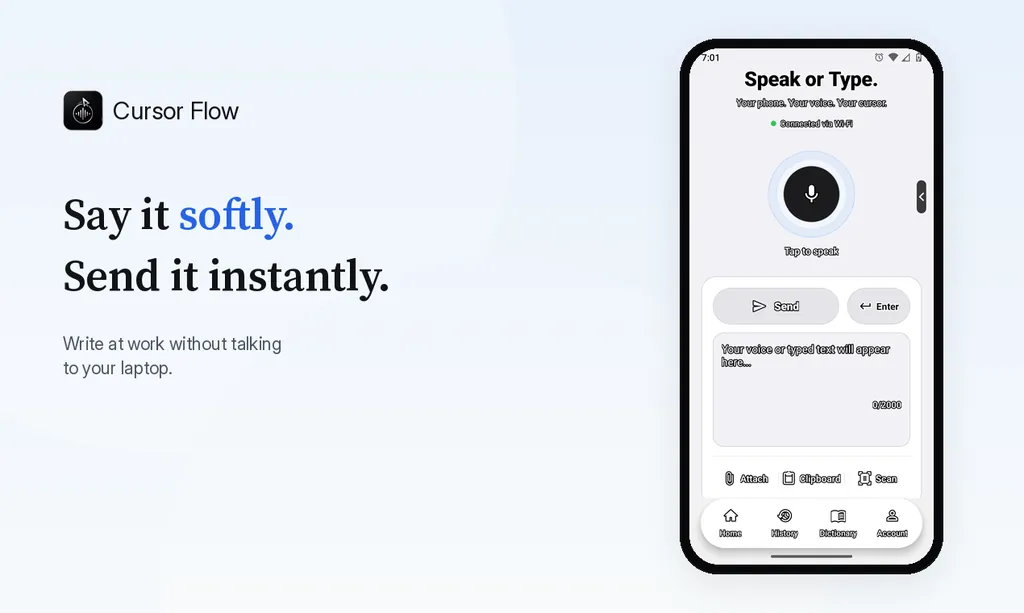
The free plan includes 2,500 dictation words a week, typing on your phone into your PC cursor, phone-to-PC files, images and clipboard, and Scan. See pricing, how phone to PC works, and the Android voice keyboard.
FAQ
What does "No permission to enable voice typing" mean?
It almost always means your keyboard app, usually Gboard, is not allowed to use the microphone, or voice typing is turned off in the keyboard's settings.
How do I give Gboard microphone permission?
Open Settings, tap Apps, tap Gboard, tap Permissions, tap Microphone and choose "Allow only while using the app".
Why do I see this error only in WhatsApp?
The error comes from the keyboard, not WhatsApp. The same fix applies: allow microphone access for your keyboard app and turn on voice typing in its settings.
Will clearing Gboard's cache delete my data?
Clearing the cache is safe. Clearing data resets Gboard to default settings, so you may lose learned words and custom settings.
Want a voice keyboard that can also type on your PC? Download Cursor Flow for Android and Windows.
- 57languages
- 2,500free words a week
- Windows + Androidone paired workflow