 Cursor Flow
How to Use Your Phone as a Keyboard for Your PC (Wi-Fi)
Yes, your Android phone can type on your Windows PC. Wi-Fi, Bluetooth and USB options compared, plus how to type or dictate from the phone to any app.
On this page
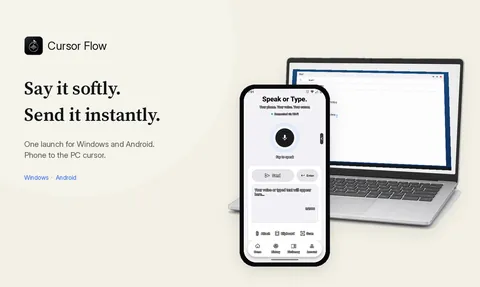
I built Cursor Flow partly for this. I wanted to type, or speak quietly, on my phone and see the words land where my PC cursor was blinking. This guide explains the general options first, then how Cursor Flow handles it.
Why use your phone as a PC keyboard?
- You cannot speak out loud, for example in a meeting, a library or a quiet office, and you are holding your phone anyway.
- You are away from your desk, like on the sofa with a PC connected to a TV.
- Your laptop keyboard is broken and you need a quick fix.
- You type faster on your phone for short replies, or prefer your phone's keyboard features.
- You want to use phone voice typing for a PC app.
The three ways it works
1. Over Wi-Fi (most common)
You install an app on the phone and a small companion program on the PC. The phone sends your keystrokes or text over the network.
- Pros: no cable, works across the room, usually easy to set up.
- Cons: needs a PC app, and often needs both devices on the same Wi-Fi.
2. Over Bluetooth
Some apps make your phone act like a Bluetooth keyboard. The PC sees it as a normal keyboard.
- Pros: may not need a PC app.
- Cons: support depends on your phone and Android version, and pairing can be finicky.
3. Over USB
A few apps work through a USB cable.
- Pros: stable connection.
- Cons: you are tied to the cable, which defeats much of the point.
What to check before you install anything
- Permissions: A remote keyboard can type into your PC. Only install apps from publishers you trust.
- Password safety: Find out how the app handles password fields.
- Network: Does it need the same Wi-Fi? Does it work on office networks?
- Typing method: Does it paste text in one go, or type it like a keyboard? Some apps and websites block paste.
How to type from your phone to your PC with Cursor Flow
Cursor Flow is a phone-plus-PC app for Android 9 or newer and Windows 10 or 11.
Setup (once)
- Install the Windows app and the Android app from our download page.
- Sign in on both with the same account.
- On the PC, open Pairing and scan the QR code with the phone. Our pairing docs show each screen.
Typing
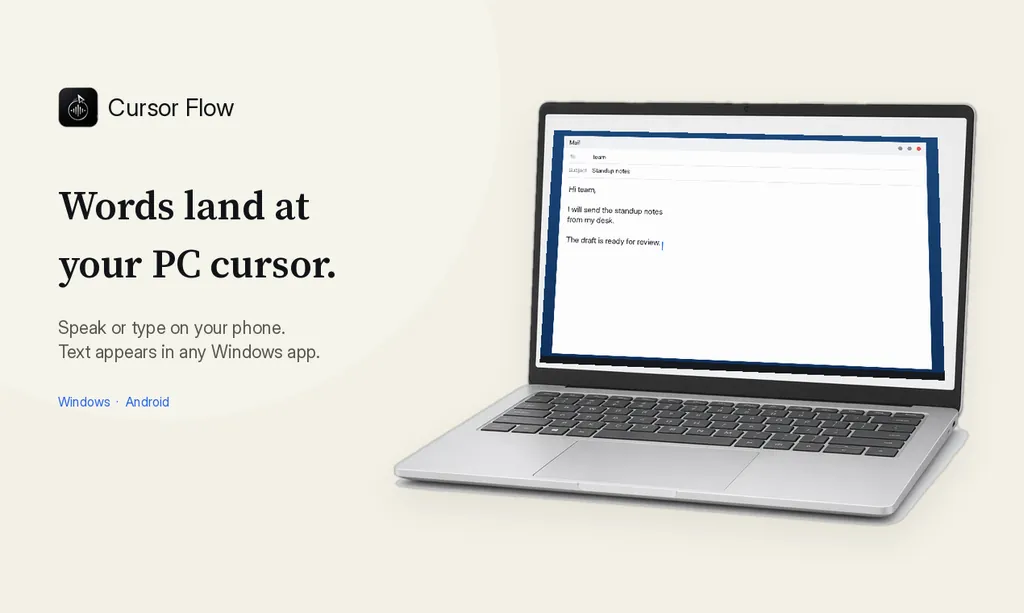
- Click into any text field on your PC: Word, Gmail, Slack, a browser form.
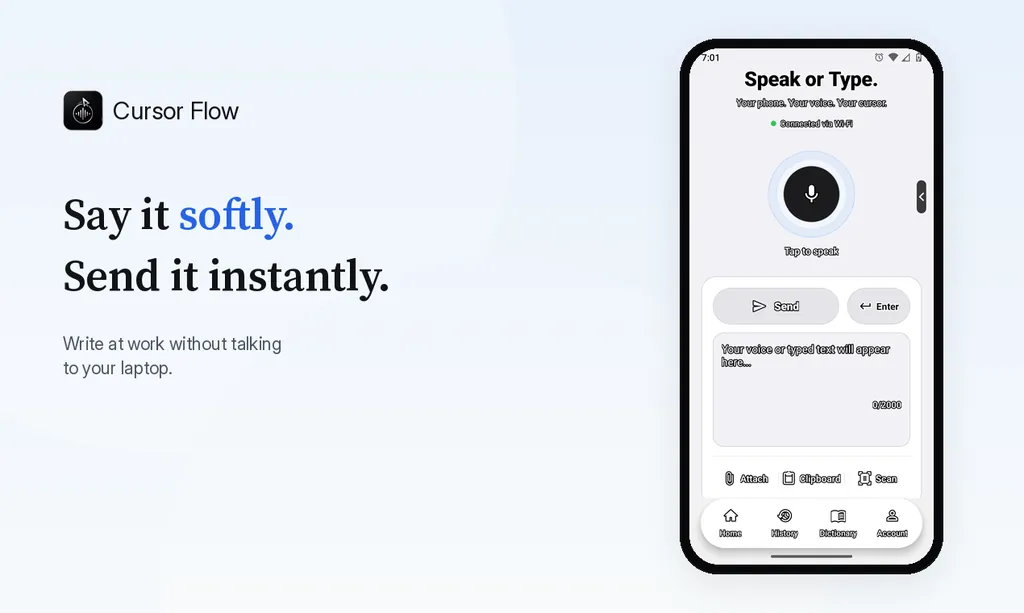
- Type in the Cursor Flow app on your phone and tap Send.
- The text is typed at your PC cursor, word by word, the way a keyboard types. It does not paste, so apps that block paste still work. More on this in direct cursor typing.
- Tap Enter on the phone to send a chat message or submit a line.
Speaking instead of typing
If you can speak, even softly, hold the phone close and talk. The words appear at your PC cursor. If you cannot speak at all, typing is the fallback. We explain both on the silent typing page.
Connection
It works over office Wi-Fi, and over the internet when your phone and PC are not on the same network. On the same Wi-Fi it works without internet once paired.
Safety
Cursor Flow never types into password fields, and if no text field is selected it holds your words instead of typing them somewhere random.
What Cursor Flow does not do
To be clear about limits:
- It is not a mouse or touchpad replacement.
- It does not support iPhone yet.
- It is not a gaming controller or a key-by-key gaming keyboard.
If you need mouse control or iPhone support, look at other remote apps.
Tips for typing on your phone for your PC
- Lock the target: If you are writing a long document, use a mode that keeps text going to the same window even if you click elsewhere. In Cursor Flow this is called Lock Target.
- Use your phone's keyboard strengths: Swipe typing and predictions often make phone typing faster than people expect.
- Batch short messages: Write a few replies in a row, then switch back to the PC.
Other free options
If you need more than text, for example a touchpad or media controls, look at KDE Connect. It is free and open source, has a Windows version on the Microsoft Store, and its site lists a virtual trackpad, a presentation remote, file and link sharing, and phone notifications on your desktop. It is a broader tool with more setup, and less focused on typing long text or voice.
How to do this with Cursor Flow
- Install both apps. Get Cursor Flow for Windows and Android from the download page.
- Pair once. Open the phone app and scan the QR code shown on your PC. See pairing if you get stuck.
- Click into any text field, then speak or type. Speak softly into the phone held close, or type and tap Send. The words are typed at your PC cursor, in the app you already use.
The free plan includes 2,500 dictation words a week, typing on your phone into your PC cursor, phone-to-PC files, images and clipboard, and Scan. See pricing, how phone to PC works, and silent typing from your phone.
FAQ
Can I use my phone to type on my computer?
Yes. Remote keyboard apps send what you type on the phone to the PC over Wi-Fi, Bluetooth or USB. Cursor Flow does this over Wi-Fi or the internet and can also take voice input.
Do I need the same Wi-Fi?
For many remote keyboard apps, yes. Cursor Flow works fastest on the same Wi-Fi, and also works over the internet when the phone and PC are on different networks.
Is it safe to type passwords from my phone to my PC?
Use caution with any remote keyboard. Cursor Flow is designed never to type into password fields, so type passwords on the PC keyboard or use a password manager.
Can my phone work as a mouse too?
Some remote apps include a touchpad mode. Cursor Flow focuses on text, voice, files and the Enter key rather than mouse control.
Ready to try typing on your PC from your phone? Download Cursor Flow free. No card needed.
- 57languages
- 2,500free words a week
- Windows + Androidone paired workflow