 Cursor Flow
How to Copy and Paste From Your Phone to PC (4 Ways)
Copy text, links and codes from an Android phone to a Windows PC. Phone Link, Quick Share, a chat app or Cursor Flow: steps, limits and which to pick.
On this page
- Option 1: Phone Link cross-device copy and paste
- Option 2: Quick Share
- Option 3: A chat or notes app on both devices
- Option 4: Cursor Flow (Android + Windows)
- Which option should you use?
- How to copy text from a photo or screenshot
- Moving files instead of text
- A note on privacy
- How to do this with Cursor Flow
- FAQ
- Keep reading
I used to message myself on WhatsApp, open WhatsApp Web on my PC and copy from there, dozens of times a day. That detour is one of the reasons I built Cursor Flow. Below are all four options, including the free built-in ones, with their real limits.
Option 1: Phone Link cross-device copy and paste
Microsoft's Phone Link app connects Android phones to Windows. On supported phones it syncs the clipboard.
Requirements (from Microsoft)
- Windows 10 with the October 2022 update or later, or Windows 11.
- Android 10 or later.
- A supported phone: Surface Duo, Samsung phones on One UI 2.1 or later, and select HONOR, OPPO (including OnePlus and Realme), ASUS, vivo and Xiaomi models.
- Both devices on the same Wi-Fi, unless you allow sync over mobile data.
How to turn it on
- Open Phone Link on your PC and link your phone.
- Go to Settings > Features > Cross-device copy and paste.
- Turn on Allow this app to access and transfer content I copy and paste between my phone and PC.
- Copy on one device and paste on the other with your normal shortcuts.
Limits
Microsoft's cross-device copy and paste page says:
- Only text and images can be copied.
- Images over 1 MB are resized.
- Every copy on either device replaces the clipboard on both.
- Very large text may not transfer. Copy smaller sections.
If your phone is not on the list, this option is not available to you, and that is the case for many Android phones.
Option 2: Quick Share
Google's Quick Share sends files between Android and Windows. Google notes that on select devices with Android 13 and above, you can share clipboard content through Quick Share after you copy something.
- Install Quick Share on your Windows PC (64-bit Windows 10 or later).
- Keep Wi-Fi and Bluetooth on, and keep the devices within about 5 metres.
- Copy on your phone, tap the share option in the pop-up, and pick your PC.
It is good for the occasional link. It is not a continuous clipboard sync.
Option 3: A chat or notes app on both devices
The universal workaround: send the text to yourself in a chat app, email or a notes app, then open it on the PC.
- Pros: works on any phone, free.
- Cons: several steps every time, your chats fill with notes to yourself, and it breaks your focus.
This is fine for once a day. It gets painful at twenty times a day.
Option 4: Cursor Flow (Android + Windows)
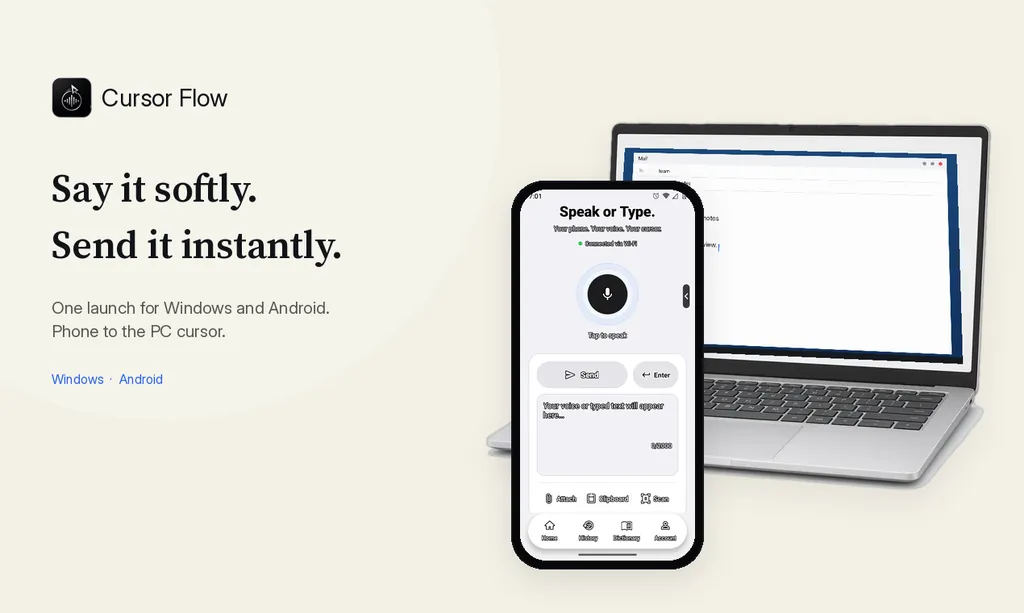
Cursor Flow pairs your Android phone with your Windows PC by QR code. Two parts are relevant here:
- Clipboard, both ways: Copy an OTP or a link on your phone and send it to your PC in one tap. Pull text from your PC to your phone the same way.
- Type on your phone, it appears on your PC. If you are writing the text on the phone anyway, type or speak it in the Cursor Flow app, and it is typed at your PC cursor in whatever app is open.
It works on any Android 9 or newer phone, not only selected brands, and over office Wi-Fi or the internet when your phone and PC are not on the same network. It does not support iPhone. See how phone to PC works and the phone to PC docs.
Which option should you use?
| Your situation | Best choice |
|---|---|
| Supported Samsung or other listed phone, same Wi-Fi | Phone Link |
| Occasional link on an Android 13+ phone | Quick Share |
| Rarely need it | Chat app or email to yourself |
| Any Android phone, many times a day, or also need voice and files | Cursor Flow |
How to copy text from a photo or screenshot
Sometimes the text is in an image, like a receipt or a slide. Many Android phones can select text in photos, for example through Google Lens. Select the text, copy it, then use any method above to get it to your PC.
Moving files instead of text
Copy and paste is for text, links and small images. For PDFs, documents or full-size photos, use a file transfer method. Our earlier post covers phone to PC file transfer, and our guide to transferring files from phone to laptop without a cable compares the options.
A note on privacy
Clipboard sync means anything you copy can appear on the other device. That includes codes and private messages. Use a password manager for passwords, avoid copying sensitive items on shared PCs, and clear the clipboard when you are done.
How to do this with Cursor Flow
- Install both apps. Get Cursor Flow for Windows and Android from the download page.
- Pair once. Open the phone app and scan the QR code shown on your PC. See pairing if you get stuck.
- Tap Attach, Clipboard or Scan. The file, the copied text or the scanned PDF arrives on your paired PC.
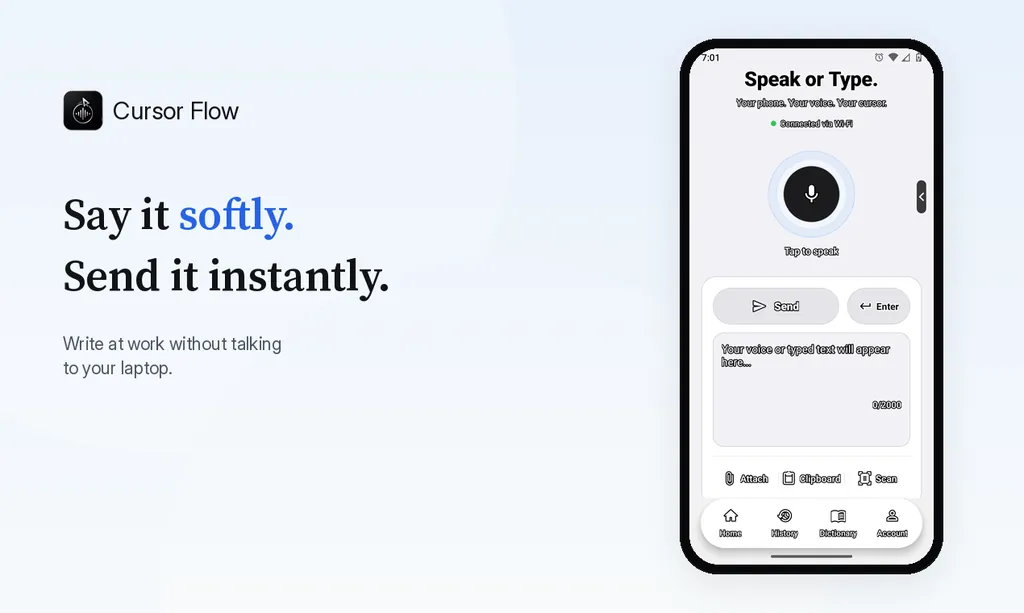
The free plan includes 2,500 dictation words a week, typing on your phone into your PC cursor, phone-to-PC files, images and clipboard, and Scan. See pricing, how phone to PC works, and phone-to-PC file transfer.
FAQ
Can I copy and paste from Android to Windows?
Yes. Phone Link supports it on select Samsung, HONOR, OPPO, ASUS, vivo and Xiaomi phones. On other phones, use Quick Share, a chat app you open on both devices, or an app like Cursor Flow.
Why is Phone Link copy and paste not working?
Your phone may not be on Microsoft's supported list, the feature may be off in Phone Link settings, or the two devices are not on the same Wi-Fi and mobile data sync is off.
Can I copy from my PC to my phone too?
Phone Link's cross-device copy and paste works both ways on supported phones. Cursor Flow can also pull PC text to your phone.
Is it safe to copy passwords or codes between devices?
Be careful. Anything on your clipboard may sync to the other device. Use a password manager for passwords, and clear sensitive items when done.
Tired of messaging yourself? Download Cursor Flow free for Android and Windows.
- 57languages
- 2,500free words a week
- Windows + Androidone paired workflow