 Cursor Flow
How to Dictate in Teams Chat, Even in a Quiet Office
Teams chat has no dictate button. 3 ways to voice type Teams messages on Windows, including one that works when you can't talk out loud at your desk.
On this page
- Why there is no dictate button in Teams chat
- Method 1: Windows voice typing (free, built in)
- Method 2: Dictate in Word or Outlook, then paste
- Method 3: Use your phone as a quiet mic, or type on it
- Which method should you use?
- Tips that make Teams dictation work better
- What not to dictate at your desk
- Common problems and fixes
- Where Cursor Flow fits, honestly
- How to do this with Cursor Flow
- FAQ
- Keep reading
I am Prince, an introvert who does not enjoy typing, and I build Cursor Flow. So I have a bias, and I will say where it fits and where it does not. Most of this guide works with free, built-in tools.
Why there is no dictate button in Teams chat
People ask this a lot, and the honest answer is short. On Microsoft's own community forum, the reply to "voice messages in MS Teams for desktop" says Teams desktop "does not have a built-in dictation feature that allows users to type messages using their voice," and points people to Windows voice typing instead (Microsoft Q&A).
Teams does have other voice features, and they get confused with dictation:
- Meeting captions and transcripts write down what people say in a call. They do not type your chat message.
- Voice messages or clips send audio. Your colleague has to press play, and they cannot skim it.
- Dictate in other Microsoft apps like Word and Outlook is a separate feature inside those apps.
So for chat, the job falls to Windows or to a dictation app that types wherever your cursor is.
Method 1: Windows voice typing (free, built in)
This is the quickest way to try it.
- Open the Teams chat or channel and click into the message box.
- Press Windows key + H. The voice typing bar appears.
- Speak your message in full sentences.
- Turn on automatic punctuation from the gear icon in the voice typing bar, so you do not have to say "period" and "comma".
- Read what it typed, fix anything wrong, then press Enter.
What to know before you rely on it:
- Microsoft says voice typing uses online speech recognition, so it needs internet.
- It uses your PC's default microphone. On most laptops that mic sits about an arm's length away, which means you have to speak at a normal or loud volume to be understood.
- It supports a fixed list of languages. Check Microsoft's voice typing page if you write in a language other than English.
For one or two messages a day at home, this is all you need.
Method 2: Dictate in Word or Outlook, then paste
Some people draft long Teams posts in another Microsoft app first.
- Open Word or a blank Outlook email.
- Use the Dictate button there (it needs a Microsoft 365 subscription).
- Copy the text into Teams.
This is slower, and copying replaces whatever was on your clipboard. It is only worth it for long channel announcements you want to edit carefully before posting.
Method 3: Use your phone as a quiet mic, or type on it
Here is the part most guides skip. The problem with dictating Teams messages at work is usually not the software. It is that people can hear you.
One person on r/WisprFlow described their first day back in an open office: "I felt pretty embarrassed letting people hear my prompts! I tried whispering, but the office was dead quiet, so that didn't really help" (Reddit). Another asked, "Are people hunching over their laptops and whispering into them? Serious question."
Whispering at a laptop fails because the mic is too far away. The fix is distance, not volume:
- Bring the mic close: A phone held a few centimetres from your mouth hears a soft voice clearly, while the room stays in the background.
- Speak softly, not in a whisper: A real whisper drops the voiced part of speech and recognition gets worse. Aim for a low, steady voice.
- When you cannot speak at all, type on the phone instead. Typing on a phone is silent, and the text can still land in the Teams box.
How I set this up with Cursor Flow
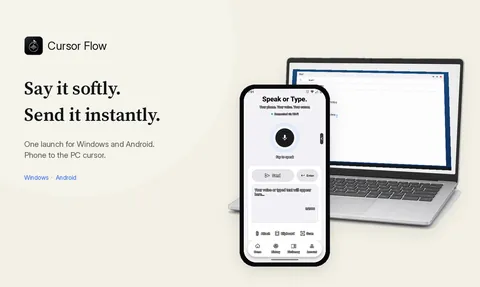
Cursor Flow pairs an Android phone with a Windows PC once, by QR code. After that:
- Click into the Teams message box on your PC.
- Hold your phone about 10 to 20 cm from your mouth and speak softly.
- The words are typed at your PC cursor, word by word, like a keyboard. It does not paste, so your clipboard stays as it was. See direct cursor typing.
- If you cannot speak, type the message on the phone instead. See silent keyboard fallback.
- Read it, then press Enter on the PC, or send Enter from the phone.
If no text field is focused when you finish, the words are held instead of being typed somewhere random, and password fields are always skipped.
Which method should you use?
| Situation | Best option |
|---|---|
| At home, short replies | Windows voice typing (Win + H) |
| Long channel announcement you want to edit | Dictate in Word, then paste |
| Shared office, short replies all day | Phone held close, soft voice |
| Silent room, meeting, or a client beside you | Type on your phone |
| Anything confidential | Type it, or move to a private room |
Tips that make Teams dictation work better
Dictate replies, not essays. Chat is the easiest place to start. A one-line reply or a three-sentence update is quick to say and quick to check.
Say the thought in one go. Pausing mid-sentence to think often leads to odd breaks. Decide what you want to say, then speak it.
Read before you press Enter. Names and numbers are where dictation slips. Teams lets you edit a sent message, but your colleague may already have read it.
Watch where Enter goes. In Teams, Enter sends. If you want a new line, use Shift + Enter on the keyboard.
Use a custom word list if your tool has one. Teammates' names and project codes are the words most often misheard.
What not to dictate at your desk
A close mic reduces what people hear. It does not make you inaudible. A simple rule from voice typing in offices: if you would not say it on a phone call at your desk, do not dictate it there. That covers salaries, performance feedback, health details and anything about the person sitting next to you. Type those, or take them to a meeting room. For more on manners, see voice dictation office etiquette.
Common problems and fixes
Where Cursor Flow fits, honestly
Cursor Flow is Windows 10 and 11 plus Android 9 or newer. There is no Mac or iPhone app yet, and the Windows app is in public beta. It supports 57 languages, with English the most tested. It is not a meeting transcription tool and it does not join calls.
The free plan includes 2,500 dictation words a week, typing on your phone into your PC cursor, phone-to-PC sending of files, images and clipboard, and Scan, with no card needed. If you want to compare it with other options, the Windows dictation app page lists what it does.
Download Cursor Flow and try it on one Teams chat first.
How to do this with Cursor Flow
- Install both apps. Get Cursor Flow for Windows and Android from the download page.
- Pair once. Open the phone app and scan the QR code shown on your PC. See pairing if you get stuck.
- Click into any text field, then speak or type. Speak softly into the phone held close, or type and tap Send. The words are typed at your PC cursor, in the app you already use.
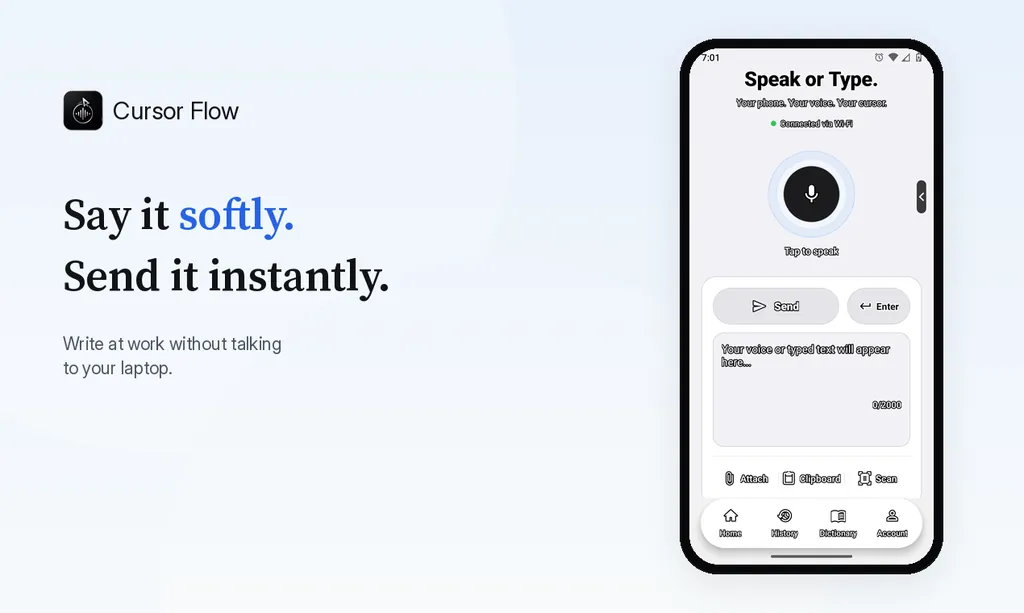
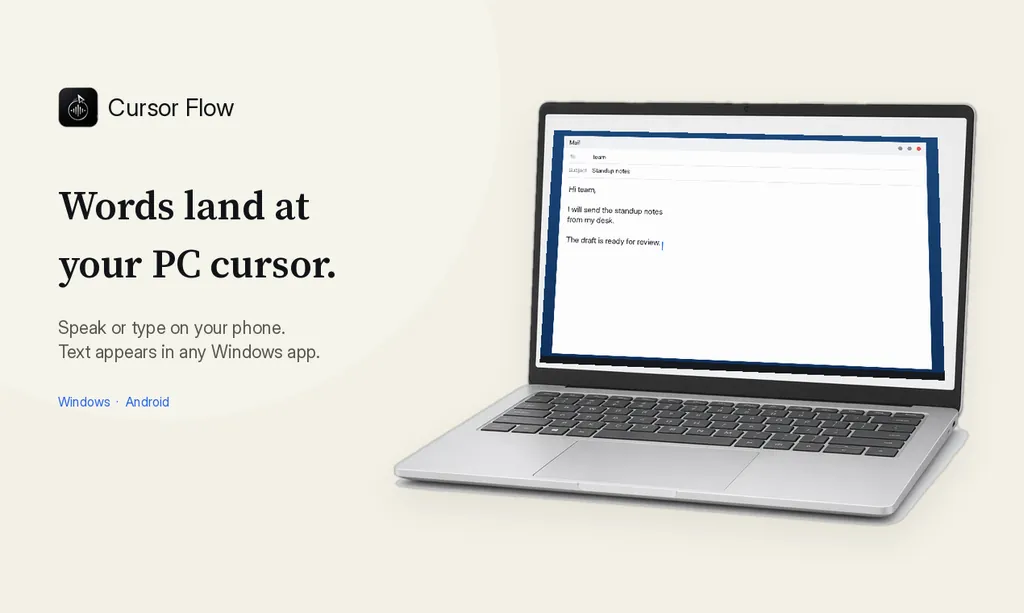
The free plan includes 2,500 dictation words a week, typing on your phone into your PC cursor, phone-to-PC files, images and clipboard, and Scan. See pricing, how phone to PC works, and typing at the cursor.
FAQ
Does Microsoft Teams have a dictate button for chat?
Not in the desktop app. Microsoft's own community answers say Teams desktop has no built-in dictation for chat messages, and suggest Windows voice typing (Windows key + H) instead.
How do I voice type a Teams message on Windows?
Click into the Teams message box, press Windows key + H, and speak. Windows voice typing types into the box. It needs an internet connection and a working microphone.
Can I dictate in Teams without my coworkers hearing me?
Not completely, but you can get close. A microphone held a few centimetres from your mouth, like a phone, lets you speak softly. When you cannot speak at all, typing on your phone and sending the text to the PC is silent.
Is a Teams voice message the same as dictation?
No. A voice message or clip is audio your colleague has to play. Dictation turns your speech into typed text they can skim, search and quote.
Does Cursor Flow work in Teams?
Yes. Cursor Flow types at your Windows cursor in any app, so it works in Teams chats, channel posts and replies, in the desktop app and in the browser.
- 57languages
- 2,500free words a week
- Windows + Androidone paired workflow