 Cursor Flow
Voice Typing in Word: How to Dictate on Windows 10 and 11
How to use Dictate in Microsoft Word, the commands that work, why the button may be missing, and free options if you do not have Microsoft 365.
On this page
- Option 1: Dictate in Word (Microsoft 365)
- Why the Dictate button is missing or grey
- Option 2: Windows voice typing in Word (free)
- Option 3: A dictation app
- Which should you use?
- Tips for long documents
- Common problems and quick fixes
- Dictate or type: when each makes sense in Word
- How to do this with Cursor Flow
- FAQ
- Keep reading
This guide is based on Microsoft's Dictate your documents in Word page, checked on 10 November 2026.
Option 1: Dictate in Word (Microsoft 365)
What you need
- Word for Microsoft 365, signed in with an active subscription.
- A working microphone.
- A reliable internet connection.
- Windows 10 or later.
Microsoft is clear that Dictate is only for Microsoft 365 subscribers, and that it is not available in Office 2016 or 2019 for Windows without Microsoft 365.
How to start
- Open a new or existing document.
- Go to Home > Dictate.
- Wait for the Dictate button to turn on and start listening.
- Speak. Text appears as you talk.
- Select Dictate again to stop.
On a Mac, Microsoft lists Option + F1 as the shortcut.
Useful commands
You can say punctuation and commands while dictating. A selection from Microsoft's English list:
| Say | Result |
|---|---|
| period / full stop | . |
| comma | , |
| question mark | ? |
| new line | line break |
| colon / semicolon | : / ; |
| open quotes ... close quotes | " " |
| delete | removes the last word or punctuation |
| delete that | removes what you just said |
| bold [word] | bolds that word |
| capitalize that | capitalizes the last phrase |
| undo | undoes the last action |
Dictation settings
Select the gear icon in the dictation toolbar to change:
- Spoken language
- Microphone
- Auto punctuation, where available for your language
- Filter sensitive phrases, which masks them with asterisks
Languages
Microsoft lists fully supported languages such as English (US, UK, India, Canada, Australia), French, German, Hindi, Italian, Japanese, Portuguese (Brazil), Spanish and Chinese (China), plus a longer list of preview languages.
Privacy
Microsoft says this service does not store your audio data or transcribed text, and that speech is sent to Microsoft only to give you the text.
Why the Dictate button is missing or grey
From Microsoft's troubleshooting section:
- Missing: you are not signed in with an active Microsoft 365 subscription, or you have Office 2016/2019 without Microsoft 365.
- Greyed out: the document is read-only.
- "We don't have access to your microphone": another app is using the mic, or permission was denied.
- "Dictation can't hear you": the mic is muted, the input level is too low, or the room is noisy.
If the mic is blocked system-wide, open Start > Settings > Privacy & security > Microphone on Windows 11 and turn on access for apps and desktop apps.
Option 2: Windows voice typing in Word (free)
Every Windows 10 and 11 PC has voice typing built in. Click into your Word document and press Windows key + H. Microsoft says it needs internet and a working mic. You can turn on automatic punctuation from its gear icon. If it will not start, see our guide to Windows voice typing not working.
This works in Word versions without Dictate, and in every other app too.
Option 3: A dictation app
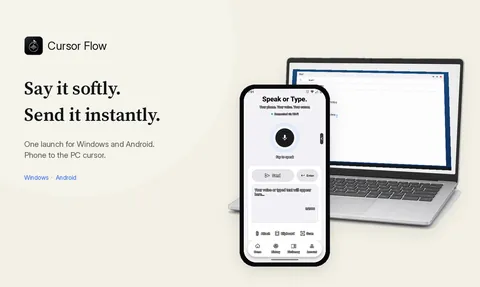
Built-in options type what you say, ums included, and need you to speak at normal volume to a computer mic. Dictation apps add cleanup and other features. Cursor Flow is one. It types at your cursor in Word and any other Windows app, word by word like a keyboard, removes filler words, and lets you use your Android phone as a close mic.
That last part is why I built it: I wanted to dictate into documents without speaking loudly to my laptop. More on the trade-offs in Win+H vs dictation apps.
Which should you use?
| You have | Best start |
|---|---|
| Microsoft 365, quiet room | Word Dictate |
| No Microsoft 365 | Windows voice typing (Win+H) |
| Shared office, want to speak softly | A close mic, or a phone-as-mic app |
| Write in many apps, want cleanup | A dictation app |
Tips for long documents
- Outline first: Dictate headings, then fill each section.
- Dictate, then edit: Do not stop for every error.
- Use a close mic: Accuracy goes up and you can speak softer.
- Save often: Dictation does not replace AutoSave habits.
Common problems and quick fixes
- Dictate turns off by itself: It may stop after silence or when you click elsewhere. Select Dictate again.
- Text appears in the wrong language: Open the gear icon and change Spoken language.
- Punctuation is missing: Turn on Auto punctuation in the gear menu, or say punctuation words like "comma" and "period".
- Names come out wrong: Type unusual names once, then keep dictating around them.
Dictate or type: when each makes sense in Word
- Dictate first drafts, meeting notes, long emails pasted into documents and outlines. Speaking keeps your ideas flowing.
- Type tables, code, exact numbers, references and anything with complex formatting.
- Mix both: Dictate a section, then switch to the keyboard to tidy it. Most people who stick with dictation work this way.
- Move to a room for long dictation sessions in a shared office, or use a close mic so you can speak softly at your desk.
How to do this with Cursor Flow
- Install both apps. Get Cursor Flow for Windows and Android from the download page.
- Pair once. Open the phone app and scan the QR code shown on your PC. See pairing if you get stuck.
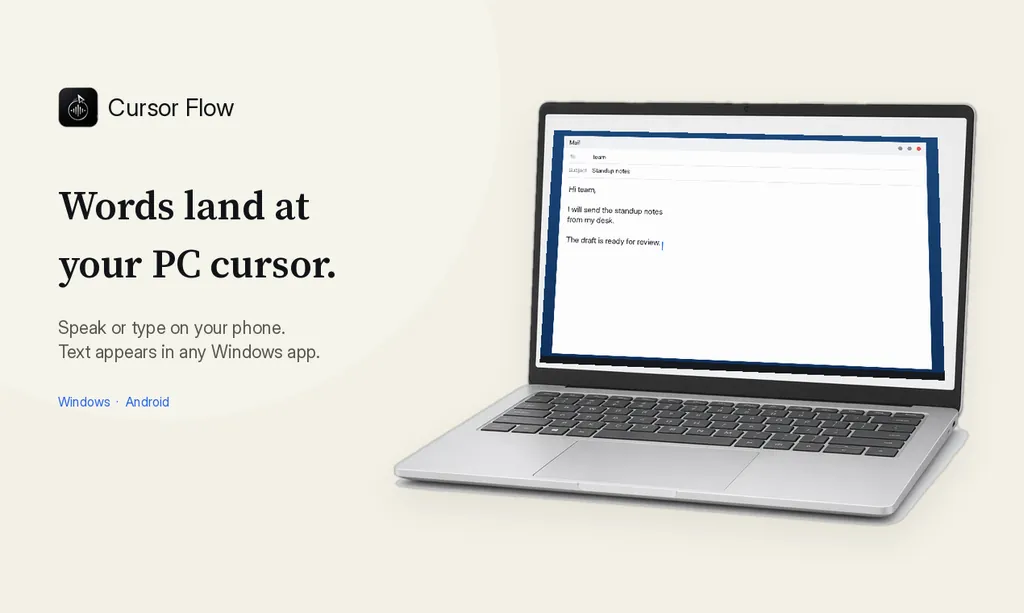
- Click into any text field, then speak or type. Speak softly into the phone held close, or type and tap Send. The words are typed at your PC cursor, in the app you already use.
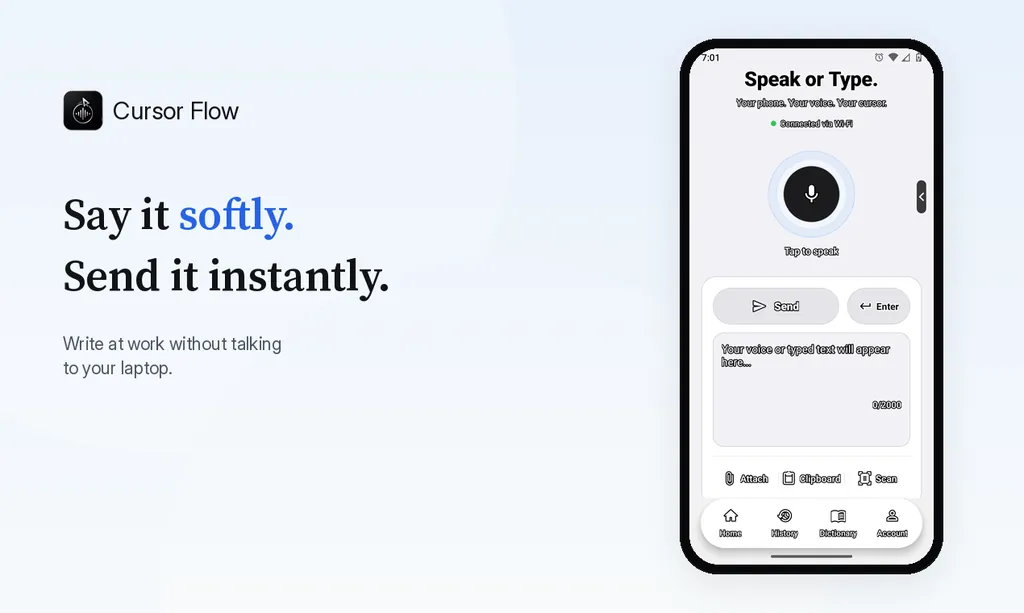
The free plan includes 2,500 dictation words a week, typing on your phone into your PC cursor, phone-to-PC files, images and clipboard, and Scan. See pricing, how phone to PC works, and Gmail, Docs and Notion.
FAQ
How do I voice type in Word?
Open a document, go to Home and select Dictate while signed in to Microsoft 365. Wait for the button to turn on, then speak.
Why is there no Dictate button in Word?
Microsoft says Dictate is only available to Microsoft 365 subscribers, and it is not in Office 2016 or 2019 for Windows without Microsoft 365. You also need Windows 10 or later.
Can I voice type in Word without Microsoft 365?
Yes. Press Windows key + H with your cursor in the document to use Windows voice typing, which is built into Windows and needs internet.
Does Word store my dictated audio?
Microsoft says the Dictate service does not store your audio data or transcribed text, and speech is sent to Microsoft only to provide the text.
Want to dictate into Word with your phone as a quiet mic? Download Cursor Flow free, or see the Windows dictation app.
- 57languages
- 2,500free words a week
- Windows + Androidone paired workflow