 Cursor Flow
Voice Typing in ChatGPT: Dictate Long Prompts the Easy Way
How to use voice to text in ChatGPT, what happens to your audio, why dictation fails, and how to dictate long prompts quietly on a Windows PC.
On this page
- Why dictate prompts at all
- How ChatGPT dictation works
- What happens to your audio
- Why ChatGPT voice to text might not work
- Tips for better dictated prompts
- Dictating prompts in other AI tools
- Dictating prompts in an open office
- A prompt template you can say out loud
- How to do this with Cursor Flow
- FAQ
- Keep reading
Details below come from OpenAI's Voice Dictation FAQ, checked on 10 November 2026.
Why dictate prompts at all
Good prompts are long. They include context, examples and what you do not want. Typing all of that is slow, so many people write short prompts and get weaker answers. Speaking a prompt is often faster than typing it, and you tend to include more detail when you talk it through.
How ChatGPT dictation works
- Click or tap the microphone icon in the message box.
- Speak your prompt.
- Press the icon again to stop.
- Your audio is sent to OpenAI's models to be transcribed. The text appears in the box.
- Edit the text if needed, then send it.
OpenAI's FAQ describes it in the same way: the recording is transcribed and returned as text, which you can edit before sending.
Dictation vs voice mode
- Dictation: your speech becomes an editable text message. Good for long, careful prompts.
- Voice mode: a spoken back-and-forth where ChatGPT answers out loud. Good for conversation, less good when you need a precise prompt.
What happens to your audio
From OpenAI's FAQ:
- Dictation audio is kept as long as the chat is in your chat history.
- When you delete the chat, the audio clip is deleted within 30 days, unless OpenAI needs it for security or legal reasons, or you previously shared audio for training and it was disassociated from your account.
- If you are a consumer user and chose to share audio to improve models, OpenAI may train on dictation audio. By default, OpenAI says it does not train on business users' inputs.
How to stop sharing dictation audio
Open ChatGPT settings, go to Data controls, and turn off Include your audio recordings. Or turn off Improve the model for everyone. OpenAI notes this stops sharing all audio across dictation and voice chat.
Why ChatGPT voice to text might not work
- Microphone permission: In a browser, allow the mic for chatgpt.com from the icon left of the address bar.
- Windows privacy settings: On Windows 11, open Start > Settings > Privacy & security > Microphone and allow apps and desktop apps to use it.
- Wrong input device: Check which mic your browser or the app uses.
- Another app holds the mic: Close video calls and recorders.
- Network problems: Transcription happens online, so a weak connection can fail.
Tips for better dictated prompts
Talk in structure
Say "Context:", "Task:", "Format:" out loud as headers. The transcript keeps your structure, and the model reads it more easily.
Do not worry about ums
Small hesitations rarely hurt a prompt. Fix only words that change meaning, like names and numbers.
Spell unusual names
If ChatGPT keeps mishearing a product name, type it once in the prompt and dictate the rest.
Review before sending
Dictation lets you edit first. Use that. A five-second check prevents a wrong answer.
Dictating prompts in other AI tools
ChatGPT's dictation works inside ChatGPT. If you also use Claude, Gemini, Copilot or an AI code editor, you will need something that works in any app. Options on Windows:
- Windows voice typing (Win+H): free, types into any text box, needs internet.
- Dictation apps: type at your cursor in any app with extra cleanup.
Cursor Flow is a dictation app I built for Windows and Android. It types at your cursor in ChatGPT, Claude, email and any other app, removes filler words, and lets you speak quietly into your Android phone instead of your laptop mic. If you want audio to stay on your PC, there is an offline mode. We also wrote about voice typing in Cursor IDE for people who prompt AI coding tools.
Dictating prompts in an open office
Long prompts often contain work details: client names, code, plans. Speaking them out loud at a shared desk can feel uncomfortable, and some of it should not be overheard. A few habits help:
- Use a close mic and speak softly.
- Keep confidential details for a private room, or type them.
- Dictate the general part of the prompt and type the sensitive specifics.
A prompt template you can say out loud
Speaking works best with a simple structure. Try this, filling in each part as you talk:
- "Context:" who you are and what the situation is.
- "Task:" exactly what you want ChatGPT to do.
- "Constraints:" length, tone, what to avoid.
- "Format:" bullet points, a table, an email draft.
- "Example:" if you have one, describe it briefly.
For example: "Context: I manage a small support team. Task: draft a polite reply to a customer who was charged twice. Constraints: under 120 words, no promises about dates. Format: an email." Spoken, that takes about fifteen seconds.
One more habit: read the transcript once before you press send. Dictated prompts rarely fail because of small grammar slips, but a misheard number or name can change the answer completely.
How to do this with Cursor Flow
- Install both apps. Get Cursor Flow for Windows and Android from the download page.
- Pair once. Open the phone app and scan the QR code shown on your PC. See pairing if you get stuck.
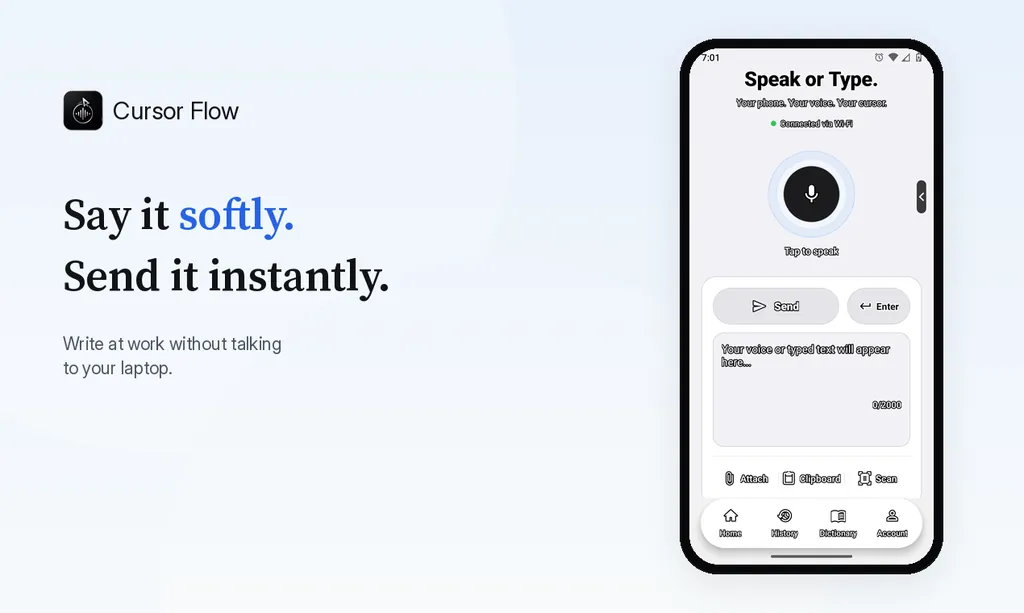
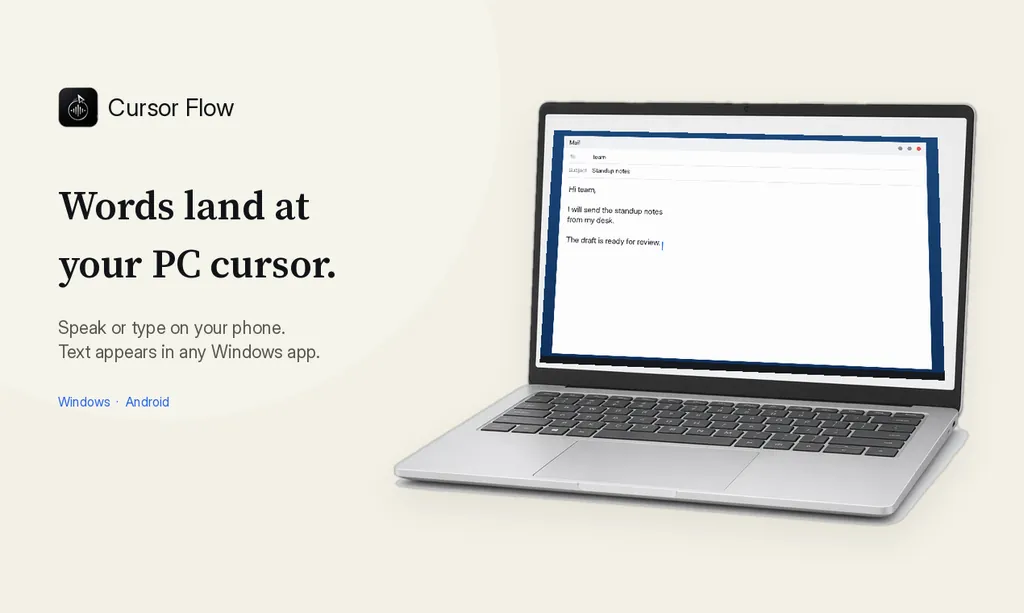
- Click into any text field, then speak or type. Speak softly into the phone held close, or type and tap Send. The words are typed at your PC cursor, in the app you already use.
The free plan includes 2,500 dictation words a week, typing on your phone into your PC cursor, phone-to-PC files, images and clipboard, and Scan. See pricing, how phone to PC works, and Gmail, Docs and Notion.
FAQ
How do I use voice to text in ChatGPT?
Press the microphone icon in the message box, speak, and press it again to stop. ChatGPT turns your audio into text that you can edit before sending.
Is ChatGPT dictation the same as voice mode?
No. Dictation turns your speech into a text message you can edit. Voice mode is a spoken conversation where ChatGPT talks back.
Does ChatGPT keep my dictation audio?
OpenAI says dictation audio is kept as long as the chat is in your history, and deleted within 30 days after you delete the chat, with some exceptions for security or legal reasons.
Can I stop ChatGPT from training on my dictation?
Yes. In ChatGPT settings, under data controls, turn off "Include your audio recordings", or turn off "Improve the model for everyone".
Want to dictate prompts into any AI tool on Windows, quietly? Try Cursor Flow free.
- 57languages
- 2,500free words a week
- Windows + Androidone paired workflow