 Cursor Flow
Voice Typing Software for PC: Free Download Options
Free voice typing software for PC: what is built in, what to download safely, and how a phone-to-PC app adds clean text, files and Scan.
On this page
I am Prince Ruhul, founder of Cursor Flow, one of the apps in this list. I have tried to be fair about when you do not need it.
First: what you already have, free
Windows voice typing
- Download: none. It is part of Windows 10 and 11.
- How: click into a text field and press Windows key + H.
- Languages: Microsoft publishes the list. It includes English, Hindi, Tamil, Telugu, Marathi and Gujarati. Bangla is not listed (Microsoft Support).
- Needs: internet and a working PC microphone.
- Output: plain text. Turn on automatic punctuation in the voice typing settings.
Google Docs voice typing
- Download: none. Open Google Docs in Chrome, Edge or Safari.
- How: Tools > Voice typing, choose your language, click the mic.
- Languages: many, including Hindi and Bengali (Google Docs Help).
- Limit: it only types into Docs and Slides.
If one of these works for you, you can stop here.
When a downloaded app makes sense
People search for "voice typing software for PC free download" for a few common reasons:
| Problem | Built-in tools | What helps |
|---|---|---|
| PC has no microphone | Cannot help | Phone as the mic |
| Laptop mic picks up fan noise | Weak results | A close mic, like a phone |
| Bangla in Gmail, WhatsApp Web or forms | Windows: no Bangla. Docs: Docs only | An app with Bangla in any app |
| "Um" and "uh" in every message | Plain transcript | An app that removes fillers |
| Also moving photos, files and copied text | Separate tools | A phone-to-PC app |
Download safely
The phrase "free download" brings up many risky sites. A few rules:
- Download from the developer's own website or the Google Play Store.
- Avoid APK mirrors and sites with several big "Download" buttons.
- Read the installer screens: Untick extra software you did not ask for.
- Be careful with "cracked" paid apps: They are a common way to get malware.
- Check what the app can access: A voice app needs the microphone. It should not need your contacts.
One note about Cursor Flow specifically: the Windows app is in public beta and not code-signed yet, so Windows SmartScreen may show a warning. Download it only from cursorfllow.com.
Plain text vs cleaned-up text
Most free voice typing writes exactly what you said. For a quick note, fine. For a client email, you spend time deleting "um," fixing a restarted sentence and adding paragraph breaks.
Some apps add a cleanup step. In Cursor Flow:
- Filler words are removed on every plan.
- Numbers come out formatted, so "fifteen thousand dollars" becomes "$15,000."
- Cursor Flow AI fixes obvious slips on the Individual and Power plans. If you say "twelve, no, fifteen," it keeps the number you meant.
- Styles per app let you keep WhatsApp casual and Outlook formal.
Other apps do some of this too. Try them with your own voice and your own writing before you pay for anything. Our comparison of dictation software for Windows covers several.
A phone-to-PC workflow, not just voice typing
If you already use your phone all day, a phone-to-PC app can replace several small detours, like messaging yourself on WhatsApp to move a photo to the PC. With Cursor Flow, one pairing gives you:
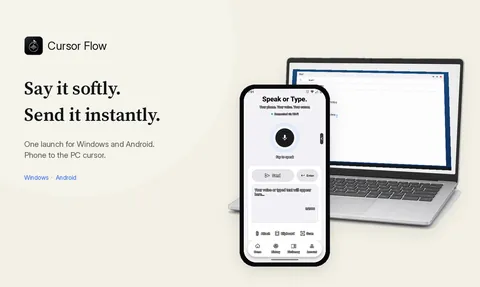
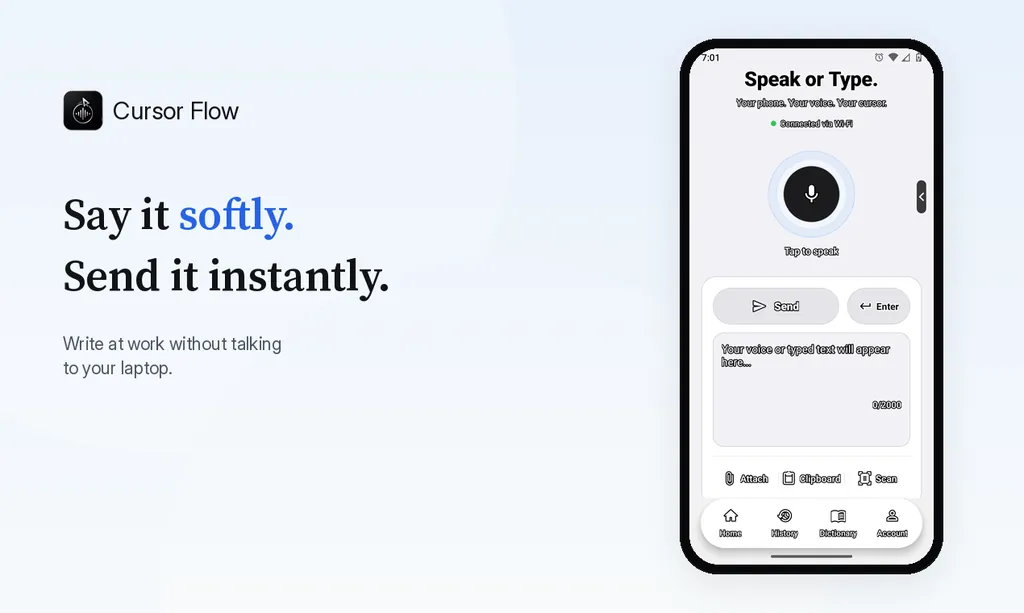
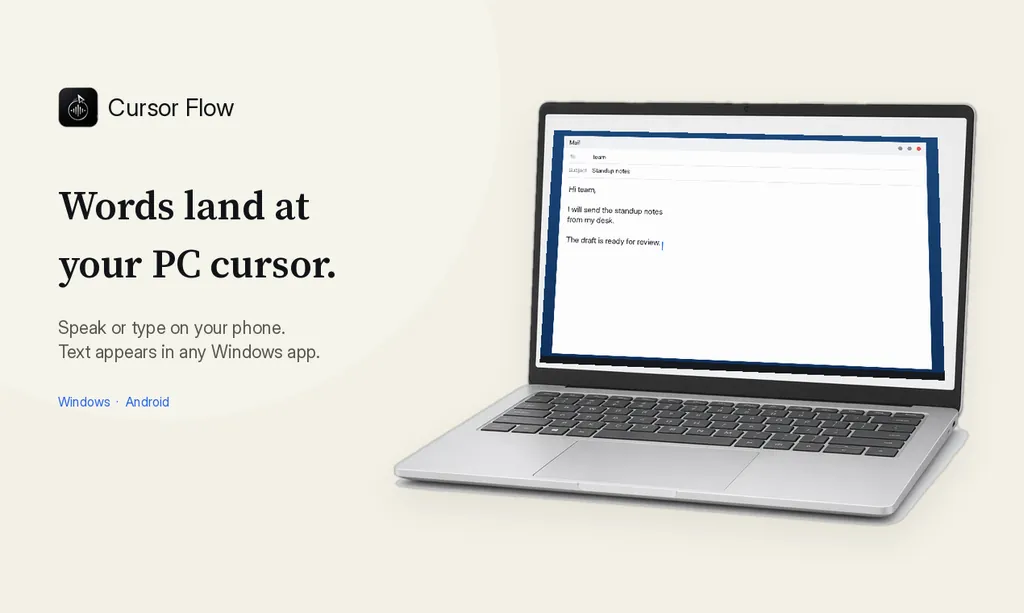
- Voice to the PC cursor: Speak into the phone, and text is typed into the app on the PC.
- Typing on the phone: When you cannot speak, type on the phone and it lands on the PC.
- Files and photos sent to a folder on the PC.
- Clipboard both ways: Copy an OTP or a link on the phone, and it is on the PC in one tap.
- Scan: Photograph pages, combine them into one PDF, and send it to the PC.
- A voice keyboard for the phone itself: Use it in WhatsApp, Gmail or any Android app. See voice keyboard.
The phone to PC page lists each one.
Which option fits you?
| You are... | Start with |
|---|---|
| Writing in English or Hindi on a laptop with a good mic | Windows voice typing |
| Writing long documents in a browser | Google Docs voice typing |
| On a desktop with no mic | A phone-to-PC dictation app |
| Writing Bangla in many apps | An app with Bangla in any app, one language per dictation |
| Moving files, photos and copied text all day | A phone-to-PC app |
| Mostly on your phone | A voice keyboard for Android |
Tips for any voice typing software
- Move the mic close: Distance matters more than the app.
- Speak in full sentences: Pausing mid-thought causes odd breaks.
- Use one language per dictation.
- Read before you send: Names and numbers are the usual errors.
- Test with a harmless message in Notepad before your real email.
How to do this with Cursor Flow
- Get the Windows app and the Android app from the official download page. You need Windows 10 or 11 (64-bit) and Android 9 or newer.
- Pair once by scanning the QR code on the PC with the phone.
- On the PC, choose your phone in Settings → Microphone. Step-by-step help is in the phone as microphone guide.
- Pin your language in Settings → Language. Use one language per dictation, for example Bangla for one message and English for the next.
- Click into a text field on the PC, tap the mic on the phone and speak.
Troubleshooting the phone-to-PC setup
Nothing types on the PC: click into a text field first. Without a focused field, Cursor Flow holds the words rather than typing them elsewhere, and it skips password fields every time.
Connection shows as off: both apps need to be open and signed in to the same account. The same Wi-Fi is quickest, and the internet works as well.
Wrong window: notifications and clicks can shift the focus. Lock Target keeps text going to one window.
Recognition mistakes: bring the phone nearer, cut the background noise, and add names and terms to Vocabulary in Settings.
App closes in the background: some Android battery savers stop apps. Exempt Cursor Flow from battery restrictions in your phone's settings.
Honest limits
- No Mac or iPhone app yet.
- English is the most tested of the 57 languages.
- Offline mode on the PC needs 8 GB of RAM and supports fewer languages.
- Do not rely on mixing two languages in one sentence.
What it costs
The free plan includes 2,500 dictation words a week, typing on your phone into your PC cursor, phone-to-PC sending of files, images and clipboard, and Scan. No card needed. Individual is $15 a month and Power is $25. The pricing page also lists special Taka prices for Bangladesh; bKash payment is listed there as coming soon.
FAQ
Is there free voice typing software for PC?
Yes. Windows 10 and 11 include voice typing (Windows key + H) with nothing to download. Google Docs voice typing is free in Chrome, Edge or Safari. Cursor Flow has a free plan with 2,500 dictation words a week, typing on your phone into your PC cursor, phone-to-PC files, images and clipboard, and Scan.
Is there free Bangla voice typing software for PC?
Windows voice typing does not list Bangla. Google Docs voice typing supports Bengali inside Docs. Cursor Flow supports Bangla in any Windows app, using one language per dictation.
Where should I download voice typing software safely?
Only from the developer's official website or the Google Play Store. Avoid APK mirrors and 'free download' sites that bundle extra installers.
Do I need a microphone on my PC?
Not with a phone-to-PC app. Your Android phone is the microphone, and the text is typed on the PC.
What is the difference between plain voice typing and cleaned-up text?
Plain voice typing writes what you said, fillers included. Cursor Flow removes filler words on every plan, and on paid plans Cursor Flow AI also fixes obvious slips.
- 57languages
- 2,500free words a week
- Windows + Androidone paired workflow