 Cursor Flow
PC Has No Microphone? How to Voice Type Using Your Phone
No mic on your desktop, or a laptop mic that sounds bad? Check these first, then use your Android phone as the mic and get clean text at your PC cursor.
On this page
- Why so many PCs have no usable mic
- Step 1: Check whether Windows sees a mic
- Step 2: Check microphone permissions
- Step 3: Decide what kind of phone mic you need
- Step 4: Get the setup right
- Why a bad laptop mic gives bad text
- Should you just buy a microphone?
- What "clean text" means
- How to do this with Cursor Flow
- Cost
- FAQ
- Keep reading
I am Prince Ruhul. I build Cursor Flow from my room in Bangladesh, where power cuts are part of the day. This guide covers the checks I would do first, then the phone route.
Why so many PCs have no usable mic
- Desktop towers often ship without a microphone. Office and cyber-cafe PCs in India and Bangladesh rarely have one.
- Old webcams with built-in mics get unplugged or lost.
- Laptop mics exist, but they sit an arm's length from your mouth and right next to the fan.
This is common. A Reddit post for gamers without a mic started: "If u cant afford a mic and cannot find a male-male aux cable here is a better solution for you. All you need is an android phone" (Reddit).
Step 1: Check whether Windows sees a mic
Before you install anything, spend two minutes on this.
- Open Settings > System > Sound.
- Look under Input. Is a microphone listed?
- Speak and watch the level bar. If it moves, the mic works.
If nothing is listed, your PC has no working mic. Skip to Step 3.
Step 2: Check microphone permissions
A mic can be present but blocked. Microsoft's guide to microphone permissions in Windows says to:
- Go to Start > Settings > Privacy & security > Microphone.
- Turn on Microphone access.
- Turn on Let apps access your microphone.
- For desktop programs, turn on Let desktop apps access your microphone.
Then try Windows key + H in a text field. If voice typing now works and the results are good, you are done.
Step 3: Decide what kind of phone mic you need
There are two ways to use a phone as the mic, and they do different jobs.
| You want to... | Use |
|---|---|
| Join calls on Zoom, Meet, Discord | An app that makes the phone a virtual mic for the PC |
| Type by voice into emails, chats, documents | A phone-to-PC dictation app that sends text |
A virtual mic app makes Windows think a microphone is plugged in. Then you still need voice typing software on the PC. A phone-to-PC dictation app skips that step: the phone listens and the PC receives finished text.
Step 4: Get the setup right
Whichever route you choose, these habits matter most:
- Hold the phone 10 to 20 cm from your mouth. Closer means your voice is much louder than the room.
- Point the bottom edge at your mouth: That is where most phone mics are.
- Speak in full sentences at a normal pace.
- Keep the phone charged: Power cuts do not stop a phone on battery, which is handy when the desktop is on a UPS.
- Check names and numbers before sending.
Why a bad laptop mic gives bad text
If your laptop mic works but the text is full of errors, the mic distance is usually the reason. Sound from your mouth gets weaker quickly as it travels, while fan noise and room chatter stay about the same. At arm's length, your voice and the noise arrive at similar levels, and the speech recogniser guesses.
A phone held close changes the balance. You can speak at a normal or even soft volume, and the input is cleaner. That is often a bigger improvement than buying a cheap external mic.
Should you just buy a microphone?
Sometimes, yes. A wired headset is a good choice if you take a lot of calls, because it works with every call app and does not depend on your phone. Think about it this way:
- Mostly calls and meetings: a headset, or a virtual-mic app on your phone.
- Mostly writing: your phone with a dictation app is often enough, and you already own it.
- Both: a headset for calls and your phone for writing works well together.
A cheap clip-on or USB mic that sits on the desk is still far from your mouth, so it can have the same noise problem as a laptop mic.
What "clean text" means
Plain voice typing writes what you said, including "um," "uh" and false starts. That is fine for a quick note and annoying for an email to a client.
Cursor Flow removes filler words on every plan. On the Individual and Power plans, Cursor Flow AI also fixes obvious slips, so "twelve thousand, no, fifteen thousand" becomes the number you meant. You can also set a style per app, such as formal in Outlook and casual in WhatsApp.
How to do this with Cursor Flow
- Download the Windows app and the Android app from the download page. You need Windows 10 or 11 (64-bit) and Android 9 or newer.
- Pair once: open Pairing on the PC and scan the QR code with the phone.
- On the PC, open Settings → Microphone and choose your phone. The full walkthrough is in the phone as microphone guide.
- Click into any field on the PC: Gmail, Word, WhatsApp Web, a government form.
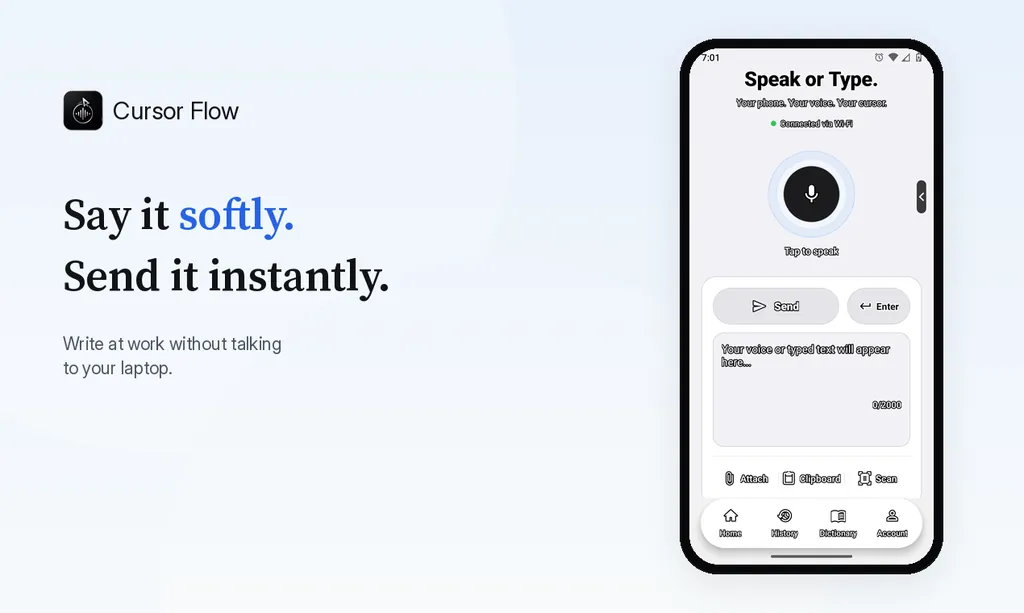
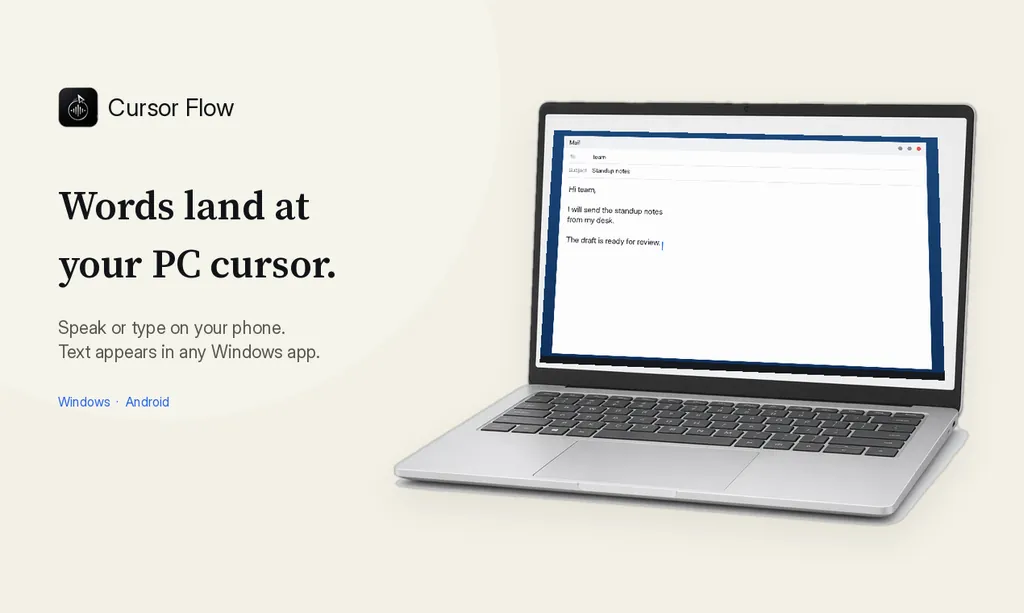
- Tap the mic on the phone, speak, and tap again to finish. The text is typed at the PC cursor.
The same app also sends files, photos, copied text and scanned pages from the phone to the PC. See phone to PC.
If something goes wrong
No text shows up on the PC. Click into a text field on the PC first. With no field focused, Cursor Flow holds your words rather than typing them in the wrong place, and it always skips password fields.
The phone says it is not connected. Make sure both apps are open and signed in to the same account. Being on the same Wi-Fi is fastest, and the connection also works over the internet.
Text goes to the wrong window. Focus can move after a notification or a click. Turn on Lock Target to keep text going to one window.
Some words are wrong. Hold the phone closer, reduce background noise, and add names and terms under Vocabulary in Settings.
The app stops when the phone is in your pocket. Some Android phones close background apps to save battery. In your phone's settings, let Cursor Flow run without battery restrictions.
Languages
Cursor Flow supports 57 languages, including Hindi and Bangla. English is the most tested. Use one language per dictation and pin it in Settings → Language. Do not rely on mixing two languages in one sentence.
Limits to know
- No Mac or iPhone app yet.
- The Windows app is in public beta and not code-signed, so SmartScreen may show a warning during install.
- Offline mode on the PC needs 8 GB of RAM and supports fewer languages.
Cost
The free plan includes 2,500 dictation words a week, typing on your phone into your PC cursor, phone-to-PC sending of files, images and clipboard, and Scan. No card needed. The pricing page also lists special Taka prices for Bangladesh; bKash payment is listed there as coming soon.
FAQ
Can I use voice typing on a PC with no microphone?
Not with the PC alone, because voice typing needs some microphone. You can use your phone instead: either as a virtual mic for the PC, or with a phone-to-PC dictation app that sends text to the PC cursor.
How do I know if my PC has a microphone?
Open Settings > System > Sound and look under Input. If no input device is listed, or the level bar does not move when you speak, Windows is not getting sound from a mic.
My laptop mic works but the text is full of mistakes. Why?
Laptop mics sit far from your mouth and pick up fan and room noise. A mic a few centimetres away, like a phone held near your mouth, usually gives cleaner input.
Do I need the internet to use my phone as the mic?
Cursor Flow works over the same Wi-Fi or over the internet. Its offline mode on the PC needs 8 GB of RAM and supports fewer languages.
Can I dictate in Bangla or Hindi this way?
Yes. Hindi and Bangla are among the 57 languages. Use one language per dictation and pin it in Settings for the most consistent results.
- 57languages
- 2,500free words a week
- Windows + Androidone paired workflow