 Cursor Flow
How to Type by Speaking on Windows, Without Talking Loudly
Three ways to turn speech into text on a Windows PC, from Win+H to Word Dictate to your phone, and which one works when you share an office.
On this page
- What "type by speaking" means
- Way 1: Windows voice typing (built in, free)
- Way 2: Dictate inside Word or Outlook
- Way 3: Google Docs voice typing
- The part nobody mentions: volume
- Way 4: Use your phone as a close microphone
- How to speak so it types correctly
- Which way should you use?
- Common beginner problems
- Where Cursor Flow fits
- How to do this with Cursor Flow
- FAQ
- Keep reading
I am Prince. I am an introvert, I do not enjoy typing, and I build Cursor Flow. This is a beginner's guide, so I start with what is already on your PC.
What "type by speaking" means
Voice typing, dictation and speech to text are names for the same idea: you talk, and the computer writes what you said. You do not need special skills. You need three things:
- A microphone. Every laptop has one. Phones and headsets have better ones for this.
- Software that turns speech into text.
- A text field to type into: an email, a chat, a document, a form.
Way 1: Windows voice typing (built in, free)
This works in almost any app on Windows 10 and 11.
- Click into the place you want to type, for example a new email.
- Press Windows key + H. A small voice typing bar appears at the top of the screen.
- Wait for it to say it is listening, then speak in full sentences.
- To stop, say "stop listening" or click the microphone in the voice typing bar.
Turn on automatic punctuation
Click the gear icon in the voice typing bar and turn on Automatic punctuation. Without it, you have to say "comma" and "period" yourself.
What to know
- Microsoft says voice typing uses online speech recognition, so you need internet.
- It supports a list of languages that Microsoft publishes. English, Hindi, Tamil, Telugu and many European languages are on it. Bangla is not, as of November 2026.
- It types a plain transcript. It does not remove "um" and "uh" on most PCs. On Copilot+ PCs, Microsoft offers a feature called Fluid dictation that corrects grammar and filler words.
For a deeper comparison of Win + H with dedicated apps, see Win+H vs dictation apps.
Way 2: Dictate inside Word or Outlook
If most of your writing happens in Microsoft 365 apps, they have their own button.
In Word
- Open a document and click where you want the text.
- Go to Home > Dictate.
- Wait for the Dictate button to turn on, then speak. Microsoft says Dictate in Word is only available to Microsoft 365 subscribers.
In Outlook
- Start a new email or reply and click the message body.
- Go to Message > Dictate.
- Wait for it to start listening, then speak.
Microsoft says Dictate in Outlook needs a microphone, an internet connection and a Microsoft 365 subscription.
These are good inside those apps. They do not help in Slack, a browser form or other programs.
Way 3: Google Docs voice typing
If you write in Google Docs:
- Open a document in Chrome, Edge or Safari.
- Go to Tools > Voice typing.
- Click the microphone and speak.
It is free and supports many languages, including Bengali. It only types into Docs and Slides.
The part nobody mentions: volume
All three ways above use your computer's microphone by default. A laptop mic is usually about an arm's length from your mouth. At that distance, your voice and the room reach the mic at similar levels, so you naturally speak up to be understood.
At home, that is fine. In an office, it is the reason many people try voice typing once and stop. On r/ClaudeAI, someone described trying to whisper to their computer at work: "You can't express your questions and theories as freely as you'd like, because you're always having to be mindful of volume control and the fact everyone is listening to you or wondering if you're now talking to them" (Reddit).
The fix is not to speak louder. It is to move the microphone closer.
Way 4: Use your phone as a close microphone
Your phone's microphone is built for a voice at close range, because that is how phone calls work. Held a few centimetres from your mouth, it hears a soft voice clearly. To people nearby, you look like someone leaving a voice note.
You need software that sends what you say on the phone to the PC as text. Cursor Flow is what I built for this:
- Install Cursor Flow on your Windows PC and Android phone.
- Pair them once with a QR code. See the phone as microphone guide.
- Click into any text field on your PC.
- Hold the phone 10 to 20 cm from your mouth and speak softly.
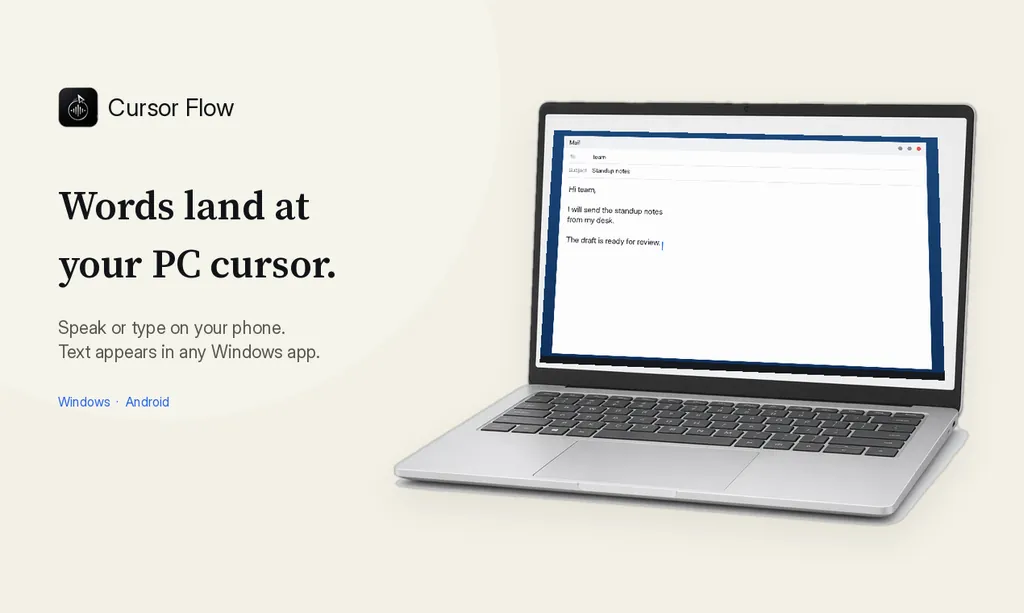
- The text is typed at your PC cursor, word by word, like a keyboard.
If you cannot speak at all, for example in a meeting or a silent room, you can type on the phone and the text still lands on the PC.
For more on speaking softly without whispering, see whisper voice typing.
How to speak so it types correctly
- Speak in full sentences: Pausing mid-thought often causes odd breaks or wrong punctuation.
- Talk at a steady pace: You do not need to slow down, but avoid rushing.
- Soft, not whispered: A true whisper removes the voiced part of speech and accuracy drops.
- Keep the mic distance steady: Resting your elbow on the desk helps.
- Read before you send: Names and numbers are the most common errors.
- Fix small things by keyboard: It is often faster than re-dictating.
Which way should you use?
| You are... | Try this |
|---|---|
| At home, writing occasionally | Windows voice typing (Win + H) |
| Writing mostly in Word or Outlook | Dictate in Word or Outlook |
| Writing mostly in Google Docs | Google Docs voice typing |
| In a shared office, writing all day | Phone as a close mic |
| In a meeting or silent room | Type on your phone, or wait |
Common beginner problems
Where Cursor Flow fits
The built-in tools are a good start, and many people never need more. Cursor Flow is for the situation they do not handle well: speaking softly in a shared room, or switching to silent typing on your phone. It runs on Windows 10 and 11 with an Android 9 or newer phone, supports 57 languages, and has an offline mode on the PC. There is no Mac or iPhone app yet. See the Windows dictation app page for details.
The free plan includes 2,500 dictation words a week, typing on your phone into your PC cursor, phone-to-PC sending of files, images and clipboard, and Scan, with no card needed.
Download Cursor Flow and dictate your next email.
How to do this with Cursor Flow
- Install both apps. Get Cursor Flow for Windows and Android from the download page.
- Pair once. Open the phone app and scan the QR code shown on your PC. See pairing if you get stuck.
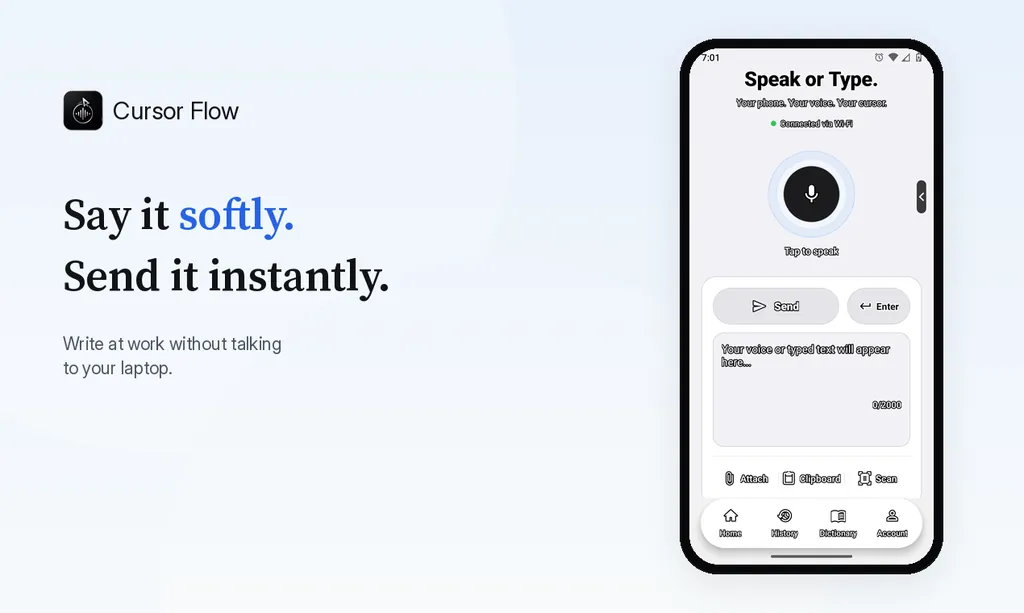
- Click into any text field, then speak or type. Speak softly into the phone held close, or type and tap Send. The words are typed at your PC cursor, in the app you already use.
The free plan includes 2,500 dictation words a week, typing on your phone into your PC cursor, phone-to-PC files, images and clipboard, and Scan. See pricing, how phone to PC works, and typing at the cursor.
FAQ
How do I type by speaking on Windows?
Click into any text field and press Windows key + H. Windows voice typing opens and types what you say. It needs an internet connection and a working microphone.
How do I speak into Word and have it type for me?
In Word, select Home, then Dictate, and start speaking. Microsoft says Dictate requires a Microsoft 365 subscription.
Is there a free way to talk to my computer and have it type?
Yes. Windows voice typing is built in and free. Google Docs voice typing is free inside Google Docs in Chrome, Edge or Safari.
Do I have to speak loudly for voice typing to work?
No, if the microphone is close. A laptop mic is far from your mouth, so you tend to speak up. A phone or headset mic a few centimetres away hears a soft voice clearly.
Do I need to say punctuation?
With Windows voice typing you can turn on automatic punctuation in its settings. Many dictation apps also add punctuation from how you phrase the sentence.
- 57languages
- 2,500free words a week
- Windows + Androidone paired workflow