 Cursor Flow
How to Voice Type Outlook Emails from Android to Windows
Write Outlook emails on Windows by speaking into an Android phone. Pair Cursor Flow, focus the right field, review the draft, and send it yourself.
On this page
- Why use a phone to dictate Outlook on Windows?
- Does Outlook have built-in dictation?
- What you need before starting
- How to voice type an Outlook email from Android
- Keep the subject and body separate
- Quiet-office workflow
- Cursor Flow versus Windows voice typing
- Fixes when Outlook voice typing is not working
- Privacy and email safety
- How to do this with Cursor Flow
- FAQ
- Keep reading
This creates a written Outlook draft. It does not send the email automatically, and it is different from dictating inside the Outlook phone app.
Why use a phone to dictate Outlook on Windows?
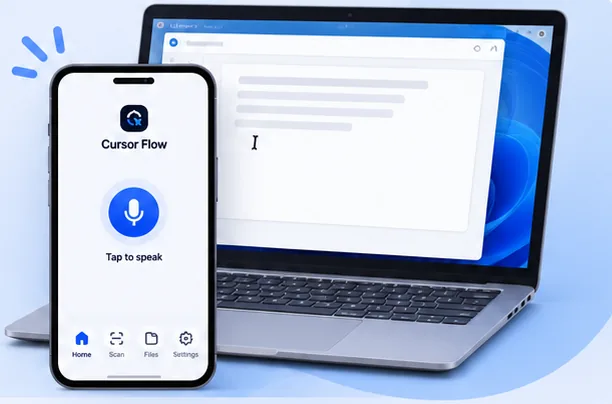
A Windows laptop microphone can be far from your mouth, a shared room may be noisy, or you may simply prefer not to speak toward your screen. An Android phone is easy to hold close. Cursor Flow lets you keep the Outlook inbox, attachments and final Send button on the Windows screen while using the phone as your quiet microphone or keyboard.
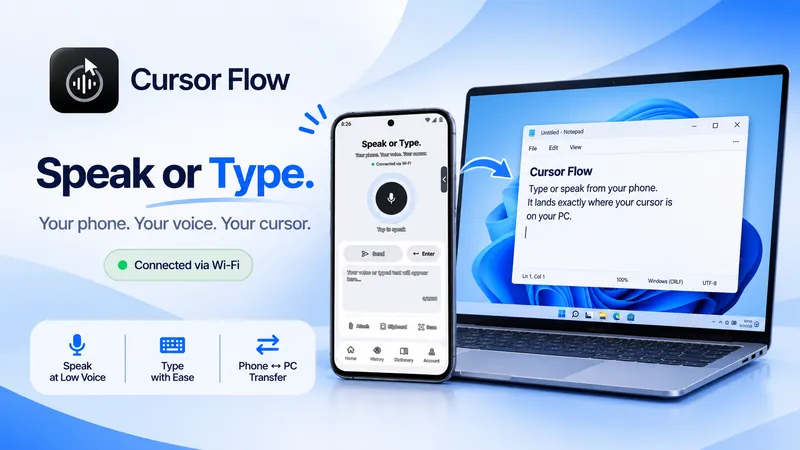
The workflow is simple: the PC keeps the active text field, and the phone supplies the text. Cursor Flow types at the Windows cursor instead of relying on copy and paste.
Does Outlook have built-in dictation?
Microsoft's Outlook Mobile help page says its mobile Dictate feature was scheduled for retirement starting in September 2024. Microsoft also documents dictation in some Microsoft 365 experiences, but availability depends on the account and app version. Check your own Outlook interface before planning around a Dictate button.
On Windows, the built-in alternative is Windows voice typing. Microsoft says it needs an internet connection, a working microphone and a cursor in a text box. Press Windows key + H after clicking the Outlook message body. It is free, but it uses the PC microphone, so it may not suit a shared office.
What you need before starting
- A Windows 10 or 11 PC with Cursor Flow installed.
- An Android phone running Android 9 or newer.
- The same Cursor Flow account signed in on both devices.
- One pairing between the phone and PC. Start with the pairing guide if you have not connected them yet.
- An Outlook desktop or browser window with a message field you can edit.
How to voice type an Outlook email from Android
- Open Outlook on Windows: Start a new message, reply, or forward.
- Fill in the recipient and subject: Doing this first keeps your dictated text out of the wrong field.
- Click inside the message body: Look for the caret in the large body area, not the To or Subject field.
- Open Cursor Flow on your Android phone: Confirm that the Windows PC is connected.
- Speak naturally or type on the phone: The text should appear in the active Outlook body field.
- Review before sending: Check names, addresses, dates, numbers, links and attachments. Press Send on Windows yourself.
Keep the subject and body separate
The most common mistake is starting dictation while the subject field still has focus. Outlook then receives your sentence as a subject instead of a message body. Click the subject and type it deliberately, click lower inside the message body until the caret is visible, then send one short test sentence from the phone.
If text goes to the wrong Outlook field, stop sending text, click the intended field again, and test with a few words. The wrong-field troubleshooting guide explains the same focus problem across Windows apps.
Quiet-office workflow
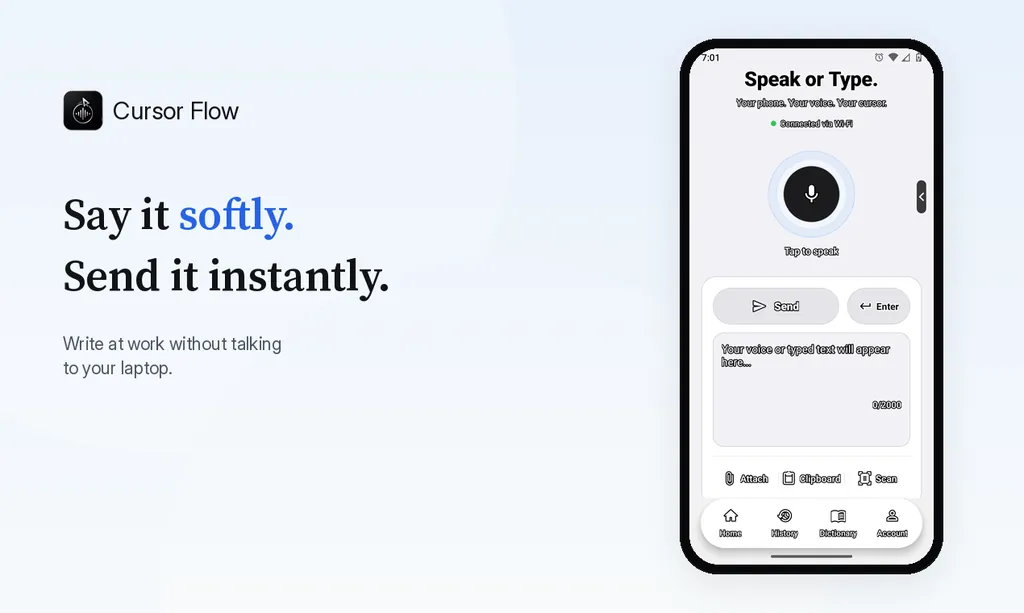
Hold the Android phone close and speak softly when you can speak, or tap the phone keyboard when you cannot. Your coworkers do not need to hear a laptop microphone across the desk. For a completely silent message, type the full draft on the phone and send it to the active Outlook body field.
Keep the Outlook window visible on the PC. Cursor Flow is not an Outlook send button, so you remain in control of recipients, attachments and the final message.
Cursor Flow versus Windows voice typing
| Need | Windows voice typing | Cursor Flow |
|---|---|---|
| Where you speak | Into a PC microphone | Into a paired Android phone |
| Where text appears | The active Outlook field | The active Outlook field |
| Quiet typing option | No, voice is the main input | Type on the phone and send the text to the PC |
| Internet | Microsoft says internet is required | Depends on the Cursor Flow mode and connection |
| Send email automatically | No | No, review and press Send yourself |
Windows voice typing is a good free first test. Cursor Flow is useful when the phone is a better microphone, when you need a phone keyboard fallback, or when you write in several Windows apps beyond Outlook.
Fixes when Outlook voice typing is not working
Privacy and email safety
Do not dictate confidential email into a shared environment until you understand the mode you are using. Cursor Flow has an offline mode for supported PC recognition. Regardless of the input tool, check the recipient and attachments before sending. A dictation tool should not remove the normal email review step.
How to do this with Cursor Flow
- Install both apps. Get Cursor Flow for Windows and Android from the download page.
- Pair once. Open the phone app and scan the QR code shown on your PC. See pairing if you get stuck.
- Click into any text field, then speak or type. Speak softly into the phone held close, or type and tap Send. The words are typed at your PC cursor, in the app you already use.
The free plan includes 2,500 dictation words a week, typing on your phone into your PC cursor, phone-to-PC files, images and clipboard, and Scan. See pricing, how phone to PC works, and typing at the cursor.
FAQ
Can I voice type an Outlook email from Android to Windows?
Yes. Pair the Android phone and Windows PC in Cursor Flow, open Outlook, click inside the message body, and dictate from the phone. The words appear as editable text in the active Outlook field.
Does Cursor Flow send the Outlook email automatically?
No. Cursor Flow sends text to the active Outlook field. Review the recipient, subject, body, links and attachments, then press Send yourself.
Why did my words appear in the Outlook subject line?
The subject field still had focus. Click inside the larger message body, send a short test sentence, and then continue once the caret is in the correct field.
Can I type on my Android phone instead of speaking?
Yes. Type on the Cursor Flow phone interface and send the text to the active Outlook body field on Windows. This is useful when you cannot speak out loud.
Is Outlook Mobile Dictate the same as this workflow?
No. Outlook Mobile Dictate is a separate mobile feature, and Microsoft's help page says it was scheduled for retirement starting in September 2024. This guide keeps Outlook on Windows and uses the Android phone as the input device.
- 57languages
- 2,500free words a week
- Windows + Androidone paired workflow
 Cursor Flow