 Cursor Flow
Scan Documents With Your Phone to PDF and Send to Your PC
No scanner? Scan documents with your Android phone camera, turn pages into one PDF and get it on your Windows PC. Free options and a faster workflow.
On this page
Scanning is one of those small daily jobs that keeps interrupting real work: a signed form, a receipt for expenses, a page of handwritten notes. Here is how to do it well with only a phone, and how to get the PDF to your computer without the usual detours.
What you need
- An Android phone with a camera.
- A scanning tool. Many phones have one built in (often in the camera or Files app), and Google Drive's mobile app has a scan option on many devices. Dedicated scanning apps work too.
- A way to move the PDF to your PC.
How to get a clean scan
1. Use good, even light
Daylight from a window is ideal. Avoid your own shadow over the page. Turn off flash if it causes a bright spot.
2. Put the page on a dark, flat surface
A dark desk or a book cover makes the edges easy to detect, so automatic cropping works better.
3. Hold the phone straight above the page
Tilted shots make text look slanted. Most scanning tools correct small angles, but not big ones.
4. Check every page before saving
Zoom in on small text. Re-take blurry pages now, not after you have sent the PDF.
5. Save as one PDF
For multi-page documents, add pages in order and save as a single PDF. It is much easier for whoever receives it.
How to send the PDF to your PC
Quick Share (nearby, free)
Install Quick Share on your Windows PC (64-bit Windows 10 or later), keep Wi-Fi and Bluetooth on, and share the PDF from your phone. Google says devices should be within about 5 metres. See Google's Quick Share page.
Cloud drive (anywhere)
Upload to Google Drive or OneDrive, then open or download it on your PC.
Email it to yourself
Works for small files. Large scans may hit attachment limits.
USB cable
Connect the phone, choose File Transfer on the phone's USB notification, and drag the PDF across. These are the steps in Google's Android file transfer help.
Scan and send in one step with Cursor Flow
Cursor Flow is an Android and Windows app I built to remove phone-to-PC detours. Its Scan feature does the whole job in one place:
- Open Cursor Flow on your Android phone and choose Scan.
- Photograph one or more pages.
- The pages are combined into a single PDF.
- The PDF is sent to your paired PC.
On the PC, files land in your Cursor Flow folder (Downloads\Cursor Flow by default) with a notification. Files can be up to 1 GB each. On the same office Wi-Fi they go directly between your devices. Otherwise they travel securely and are deleted after delivery. Details are on the file transfer page and in the docs.
It is phone to PC only in this version, and Android only, not iPhone. Scan and phone-to-PC file and image send are included on the Free plan; see the pricing page.
Which method fits you?
| Situation | Best choice |
|---|---|
| One receipt a month | Built-in scanner + email |
| Laptop next to you, no internet | Scanner + Quick Share |
| Need it on several devices | Scanner + cloud drive |
| Several scans a day at your PC | Cursor Flow Scan |
| Hundreds of archive pages | A real scanner |
Tips for specific documents
- Signed forms: scan in colour so the signature is clear, and check that the whole page is visible.
- Receipts: flatten them first. Curled paper confuses edge detection.
- Whiteboards: stand straight in front, and take two shots in case of glare. A whiteboard photo can go straight into a slide or a note on your PC.
- ID documents: avoid sending through chat apps, and delete copies from your phone when done.
Privacy reminder
Scans often contain personal data: addresses, ID numbers, signatures. Use encrypted transfer methods, avoid public computers, and clean up old scans on your phone and in your downloads folder.
How to name and file scans so you can find them
A good scan is useless if you cannot find it later. A simple naming habit helps:
- Start with the date: 2026-11-10.
- Add the type: receipt, contract, form, notes.
- Add who or what: client name, shop, project.
For example: "2026-11-10 receipt office-supplies.pdf". Rename on your phone before sending, or on your PC right after it arrives, then move it to the right folder.
Also keep the originals for a while. If a scan turns out blurry after you send it, you can re-shoot the page quickly while the document is still on your desk.
How to do this with Cursor Flow
- Install both apps. Get Cursor Flow for Windows and Android from the download page.
- Pair once. Open the phone app and scan the QR code shown on your PC. See pairing if you get stuck.
- Tap Attach, Clipboard or Scan. The file, the copied text or the scanned PDF arrives on your paired PC.
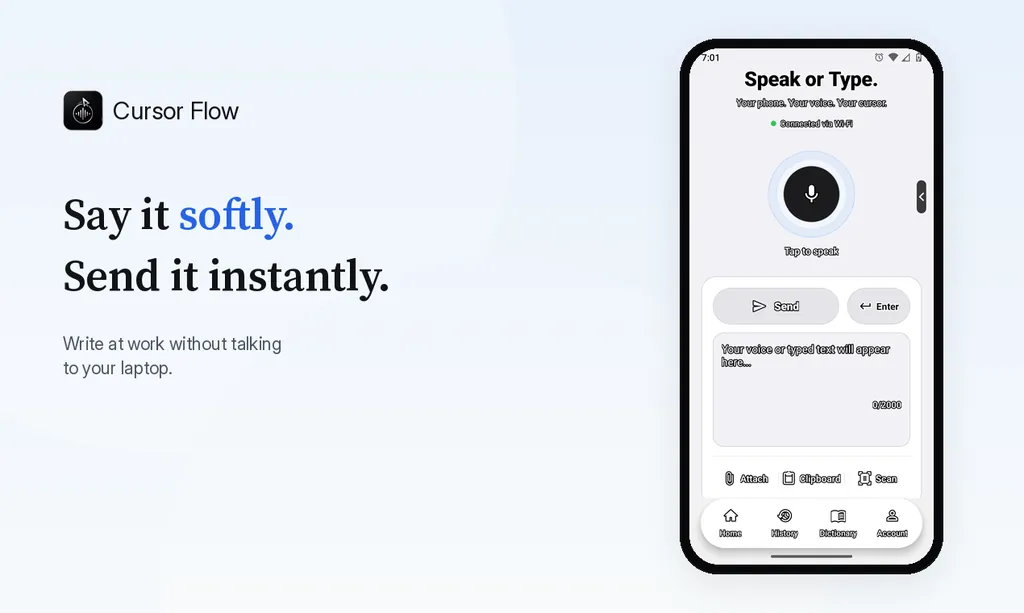
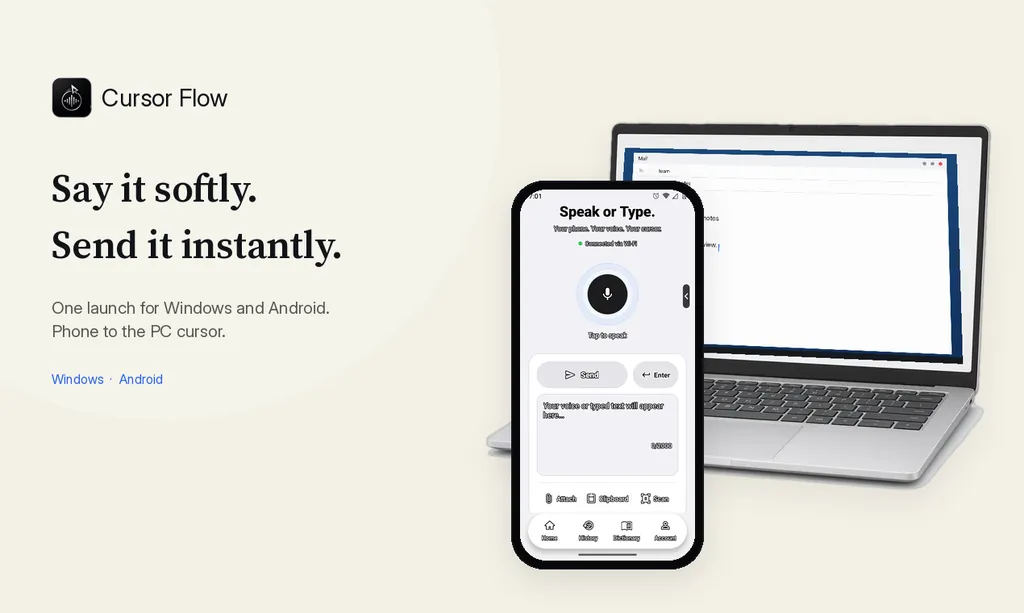
The free plan includes 2,500 dictation words a week, typing on your phone into your PC cursor, phone-to-PC files, images and clipboard, and Scan. See pricing, how phone to PC works, and phone-to-PC file transfer.
FAQ
Can I scan a document with my phone?
Yes. Many Android phones can scan documents with the camera or a scanning app, crop the page and save it as a PDF.
How do I get a scanned PDF from my phone to my PC?
Share it with Quick Share, upload it to a cloud drive, email it, or use a phone-to-PC app. Cursor Flow can scan pages into one PDF and send it to your paired PC.
Is a phone scan as good as a real scanner?
For forms, receipts and notes, a careful phone scan is usually good enough. For archival quality or many pages, a flatbed or sheet-fed scanner is still better.
How do I combine several pages into one PDF?
Most scanning apps let you add pages before saving. Cursor Flow's Scan combines multiple photos into a single PDF before sending.
Want scans to land on your PC without detours? Download Cursor Flow, or see everything phone to PC can do.
- 57languages
- 2,500free words a week
- Windows + Androidone paired workflow